> For the complete documentation index, see [llms.txt](https://nextsky.gitbook.io/glozin-theme/llms.txt). Markdown versions of documentation pages are available by appending `.md` to page URLs; this page is available as [Markdown](https://nextsky.gitbook.io/glozin-theme/frequently-asked-questions/theme-translation.md).
# Theme translation
## Single Language
To translate your theme to another language, please follow these steps:
{% hint style="success" %}
**Step 1: Change your current Published languages**
Go to **Settings -> Languages -> Change default** to change your current Published languages
{% endhint %}
{% hint style="success" %}
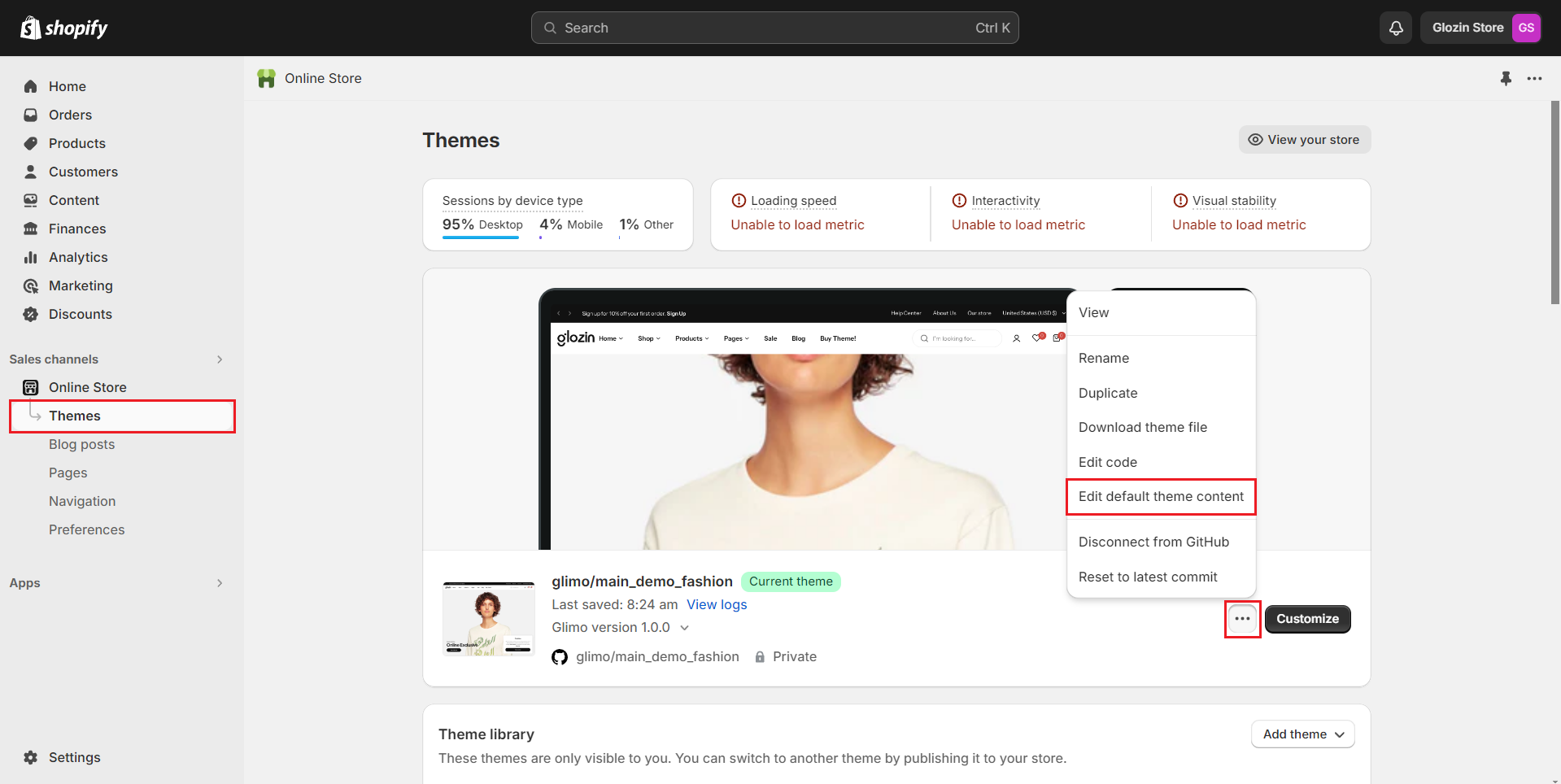
**Step 2: Update default theme content**
Go to **Online Store -> Themes -> Edit default theme content**
**Step 3: Translate the theme**
You can translate manually for each content.
{% endhint %}
{% hint style="info" %}
For more information, please follow [this document of Shopify](https://help.shopify.com/en/manual/online-store/themes/customizing-themes/language/translate-theme?ref=out-of-the-sandbox).
{% endhint %}
## Multi-language
{% hint style="info" %}
To sell in multiple languages, you need to setup your store with some requirements below:
* [**Geolocation app**](https://apps.shopify.com/geolocation) by Shopify
* [**Translate & Adapt** ](https://apps.shopify.com/translate-and-adapt)app by Shopify
* A theme that's compatible with selling in multi-languages. (Glozin theme is compatible with selling in multiple languages.)
{% endhint %}
{% hint style="success" %}
**Step 1: Install the Geolocation app and Translate & Adapt app by Shopify**
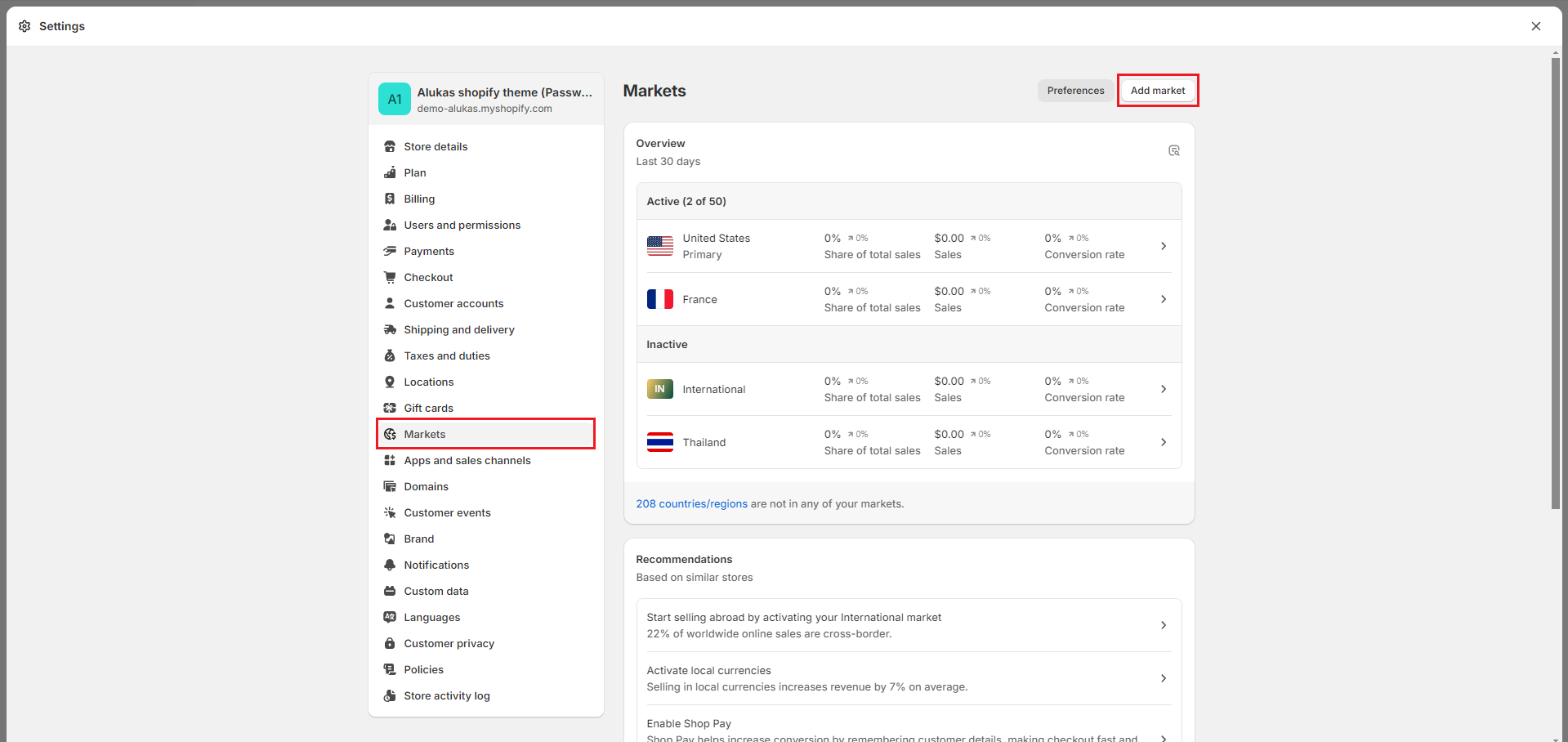
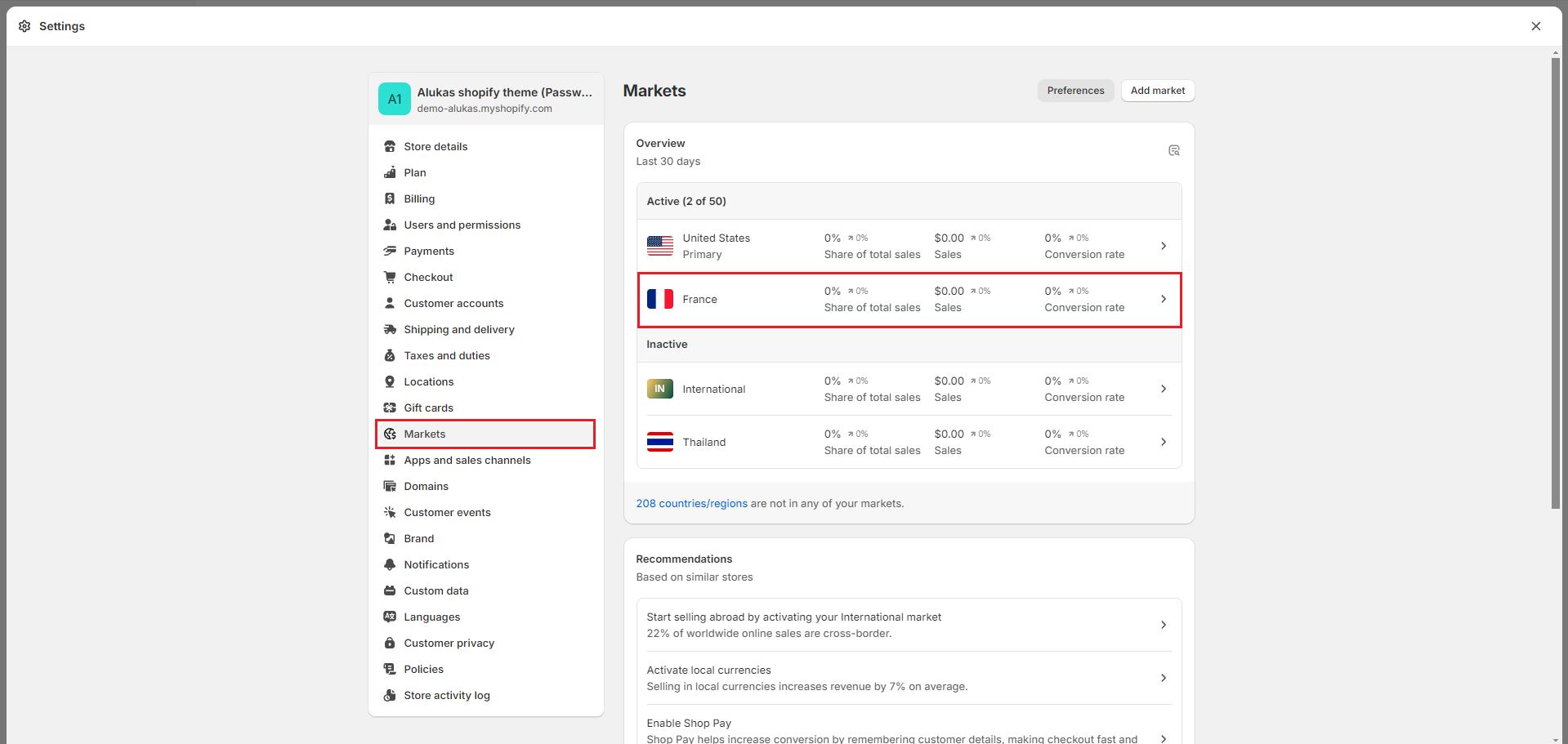
**Step 2: Add Market**
* Go to **Settings -> Market -> Add market** to add a new Market
{% endhint %}
{% hint style="success" %}
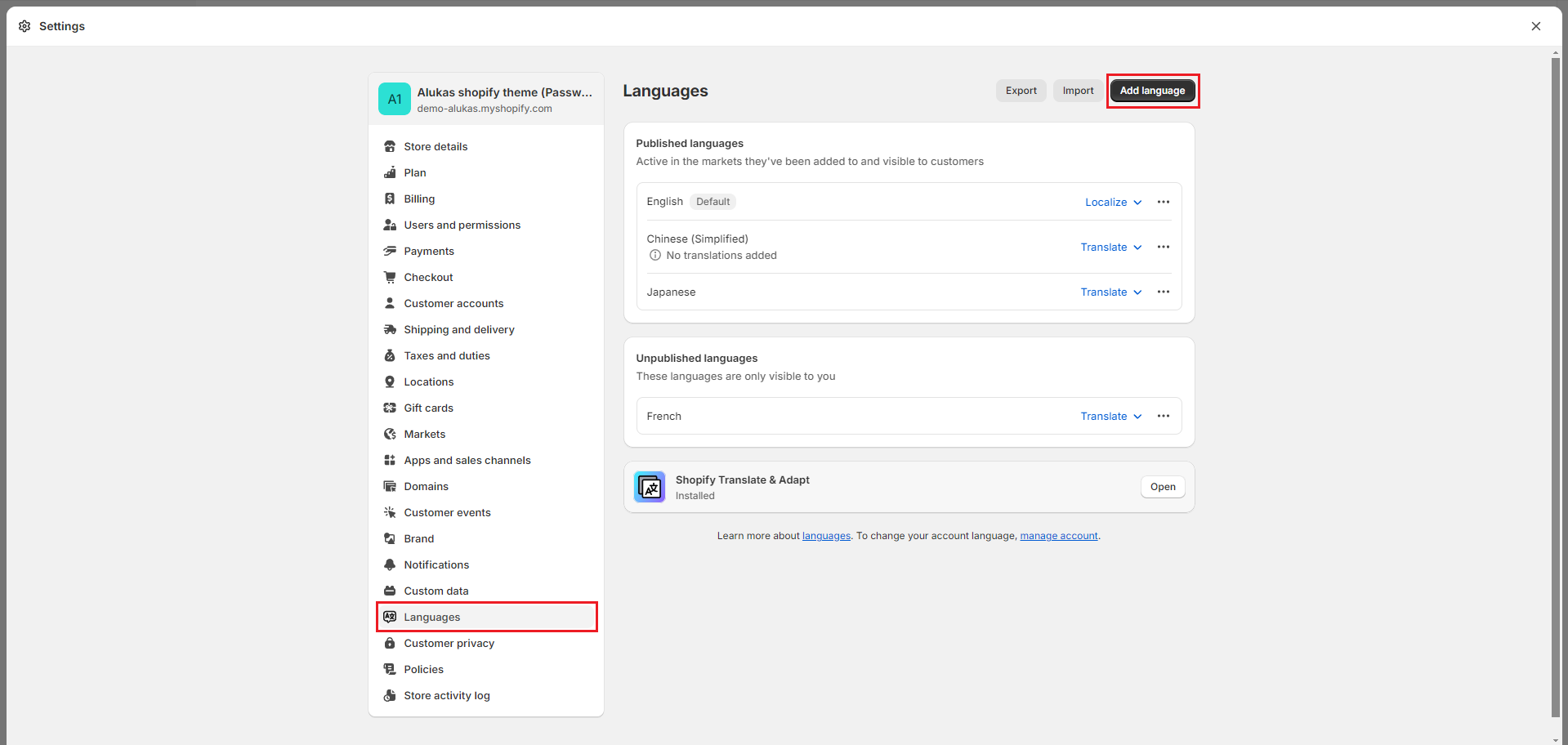
**Step 3: Add Language**
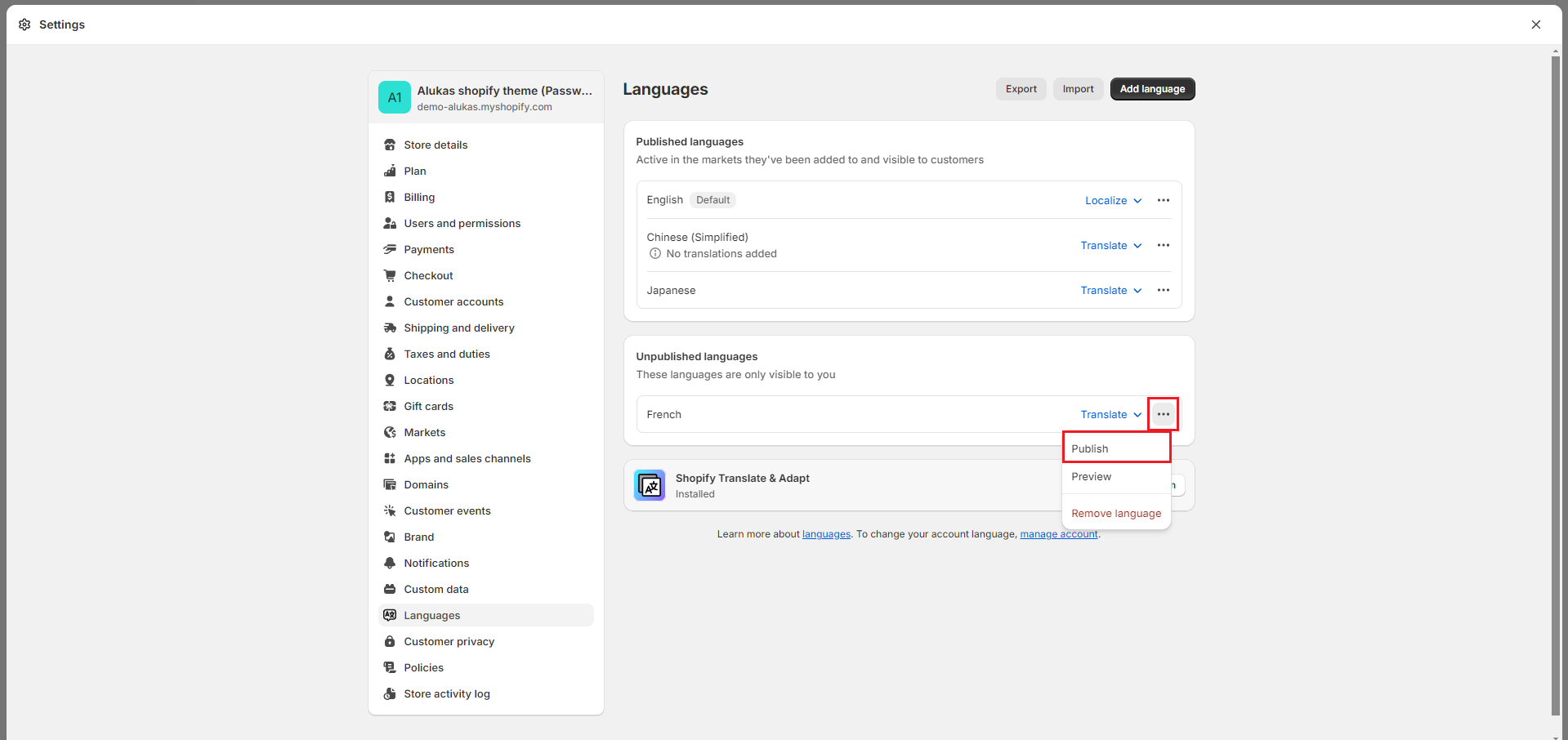
* Go to **Settings -> Languages -> Add a language** to add a new language for your new market
* **Publish** this language
{% endhint %}
{% hint style="success" %}
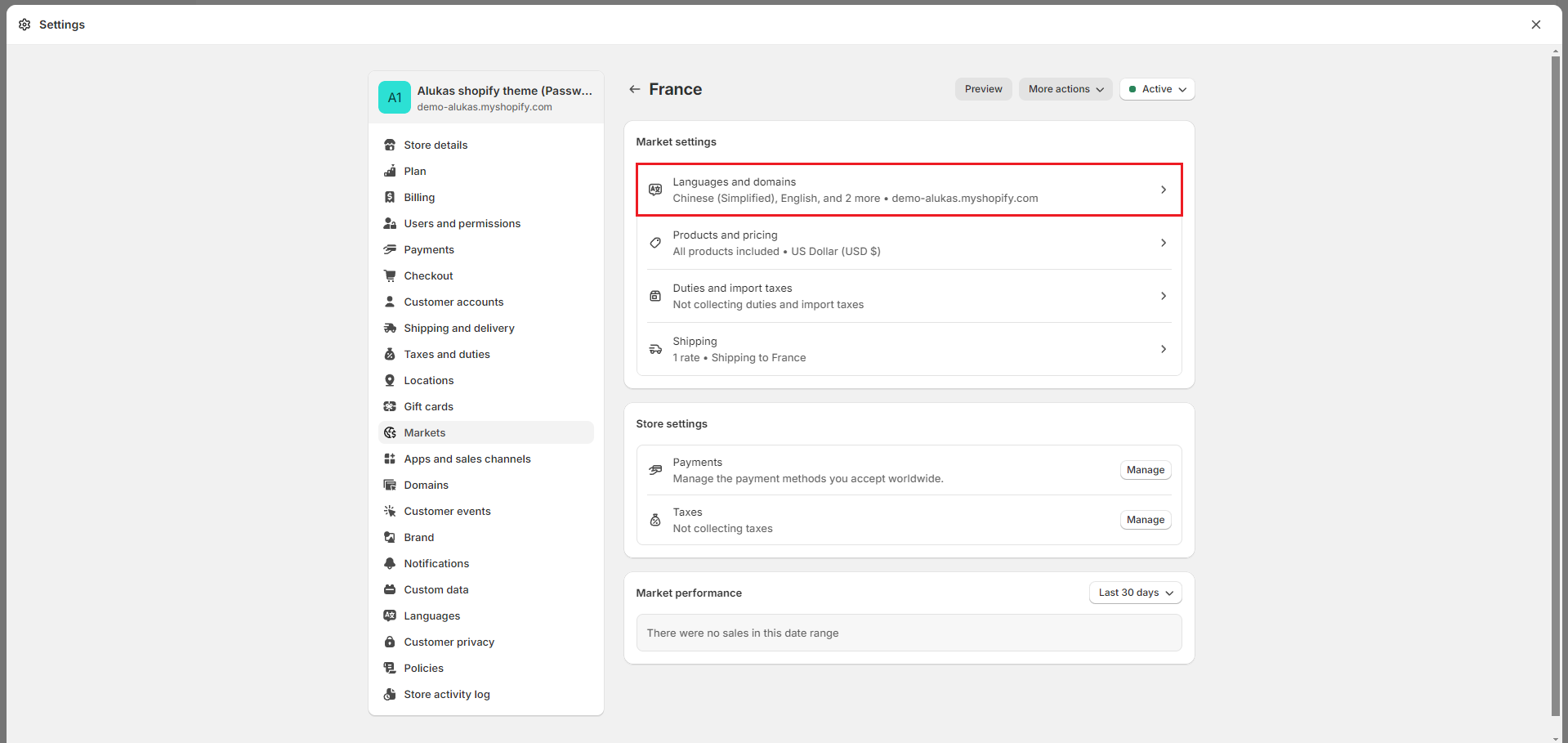
**Step 4: Back to Market and add new language to your new market**
* Go to **Settings -> Market**
* Click to **Manage -> Domain and languages** of your Primary market and tick to the new language you have just added.
* Save your configuration and click to Install **Translate & Adapt**
{% endhint %}
{% hint style="success" %}
**Step 5: Auto translate theme with Translate & Adapt app**
* Open **Translate & Adapt** app, click to **Auto-translate**
* It might take about 10 minutes. After translating, back to your store and you can see the result
{% endhint %}
.png?alt=media)
.png?alt=media)
.png?alt=media)
.png?alt=media)