> For the complete documentation index, see [llms.txt](https://nextsky.gitbook.io/glozin-theme/llms.txt). Markdown versions of documentation pages are available by appending `.md` to page URLs; this page is available as [Markdown](https://nextsky.gitbook.io/glozin-theme/get-started/custom-data/create-required-metafields.md).
# Create required metafields
## Required metafields
For optimal functionality of our theme, there are three crucial metafields that you need to set up: **Product Bought Together**, **Short Description**, and **Countdown Timer**. These metafields are essential in enhancing the shopping experience and boosting sales on your Shopify store.
1. **Product Bought Together**: This metafield allows you to display related products that are frequently purchased together, encouraging customers to add more items to their cart and increasing the average order value.
2. **Short Description**: Utilize this metafield to provide a concise and compelling summary of your product, giving customers quick insights into the key features and benefits, which can help drive quicker purchasing decisions.
3. **Countdown Timer**: Create a sense of urgency with the Countdown Timer metafield. Display a timer for sales, promotions, or product availability, motivating customers to act fast and complete their purchases before the offer expires.
{% hint style="success" %}
**Steps:**
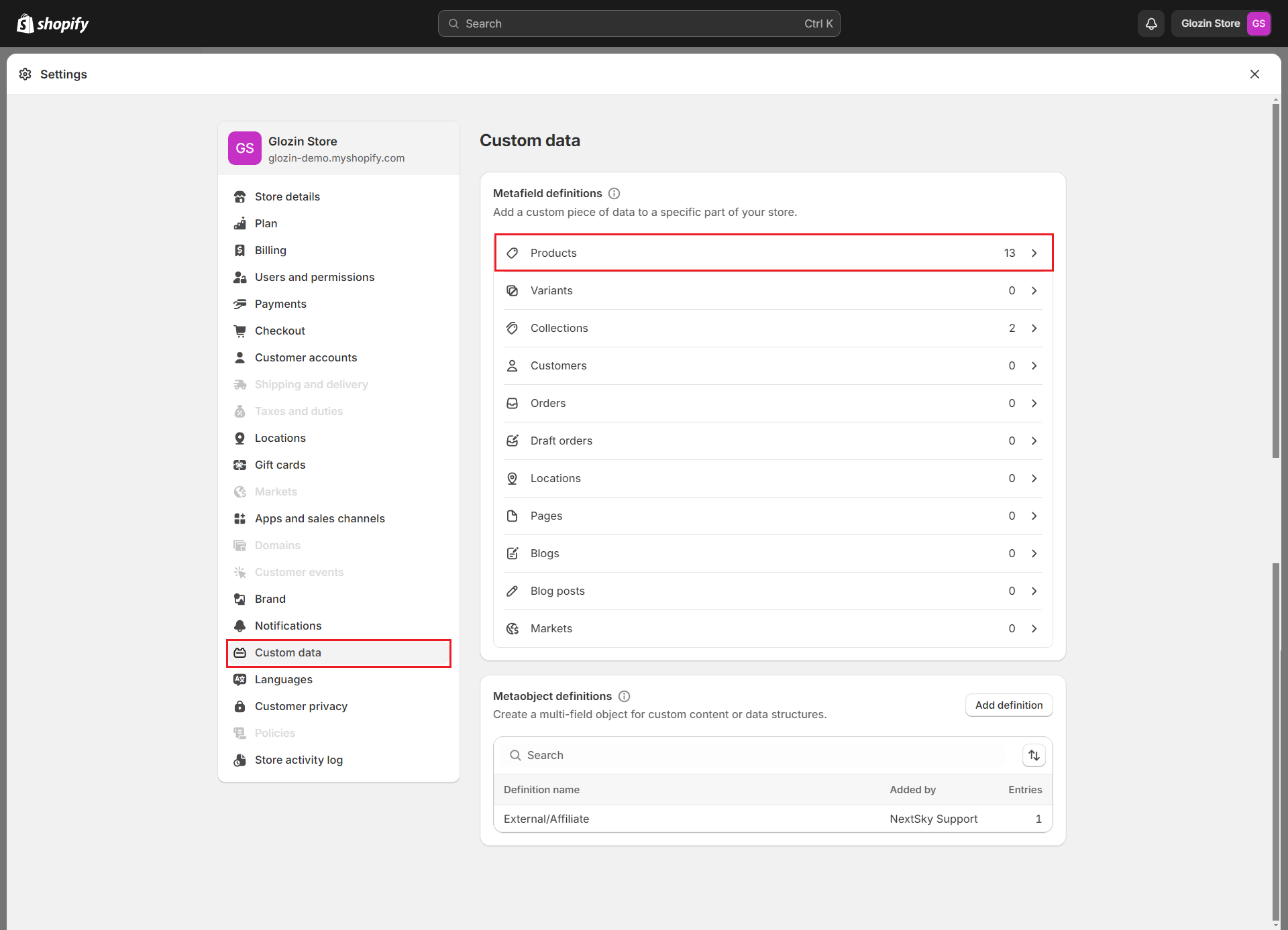
1. Login to your Shopify store, click to **Settings**
2. Click to **Custom data** and select **Products**
3. Add 3 metafields as follow:
1. **Product Bought Together**
2. **Short Description**
3. **Countdown Timer**
{% endhint %}
### 1. Product Bought Together
{% hint style="success" %}
* Name: **Product Bought Together**
* Namespace and key: **custom.bought\_together**
* Content type: **Product - List of products**
{% endhint %}
### 2. Short Description
{% hint style="success" %}
* Name: **Short Description**
* Namespace and key: **custom.short\_description**
* Content type: **Multi-line text**
{% endhint %}
### 3. Countdown Timer
{% hint style="success" %}
* Name: **Countdown Timer**
* Namespace and key: **custom.countdown\_timer**
* Content type: **Date and time - One value**
{% endhint %}
## Optional metafields
Besides these crucial metafields, there are six optional metafields that can further enhance the functionality and customization of your store:
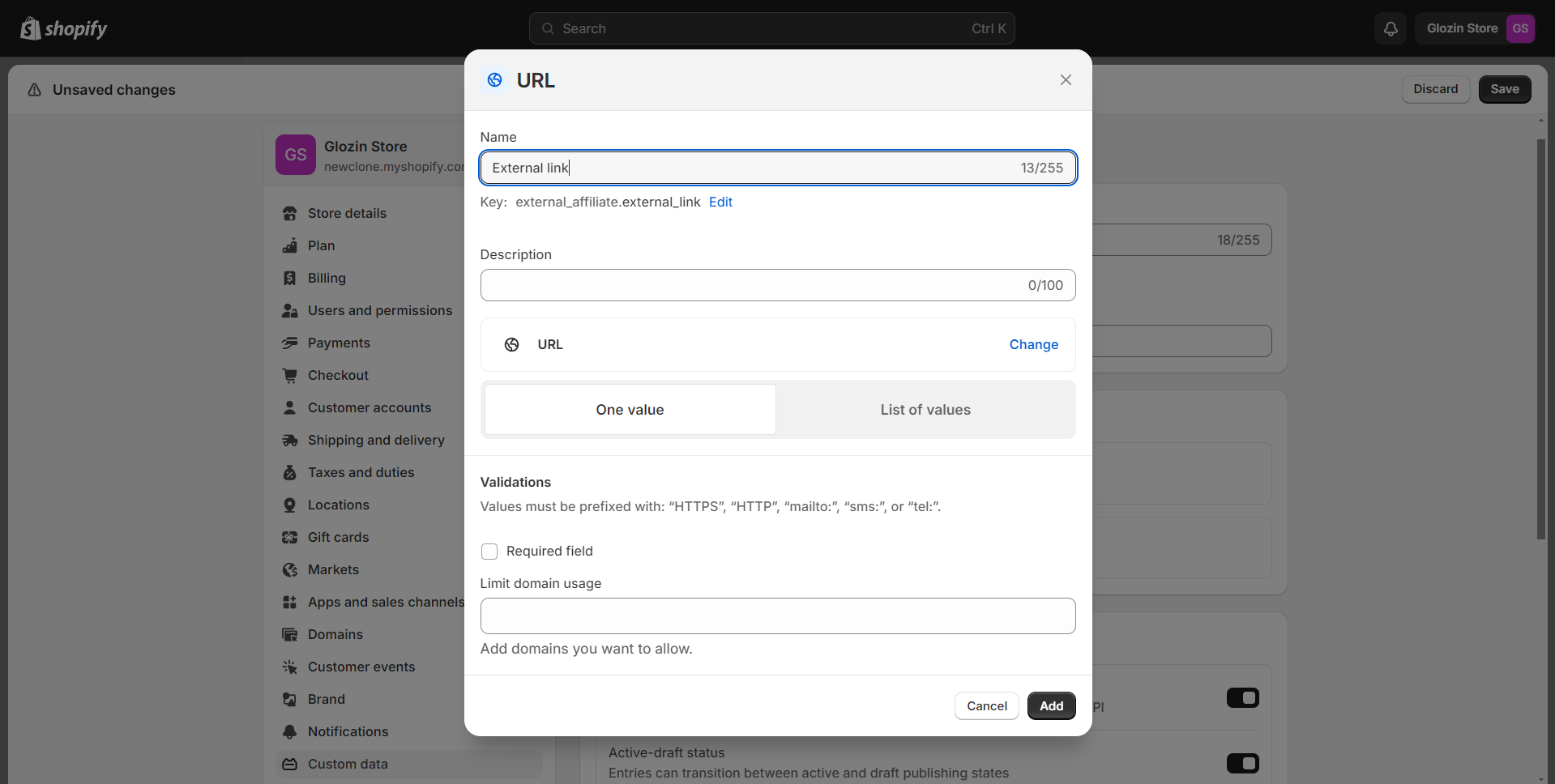
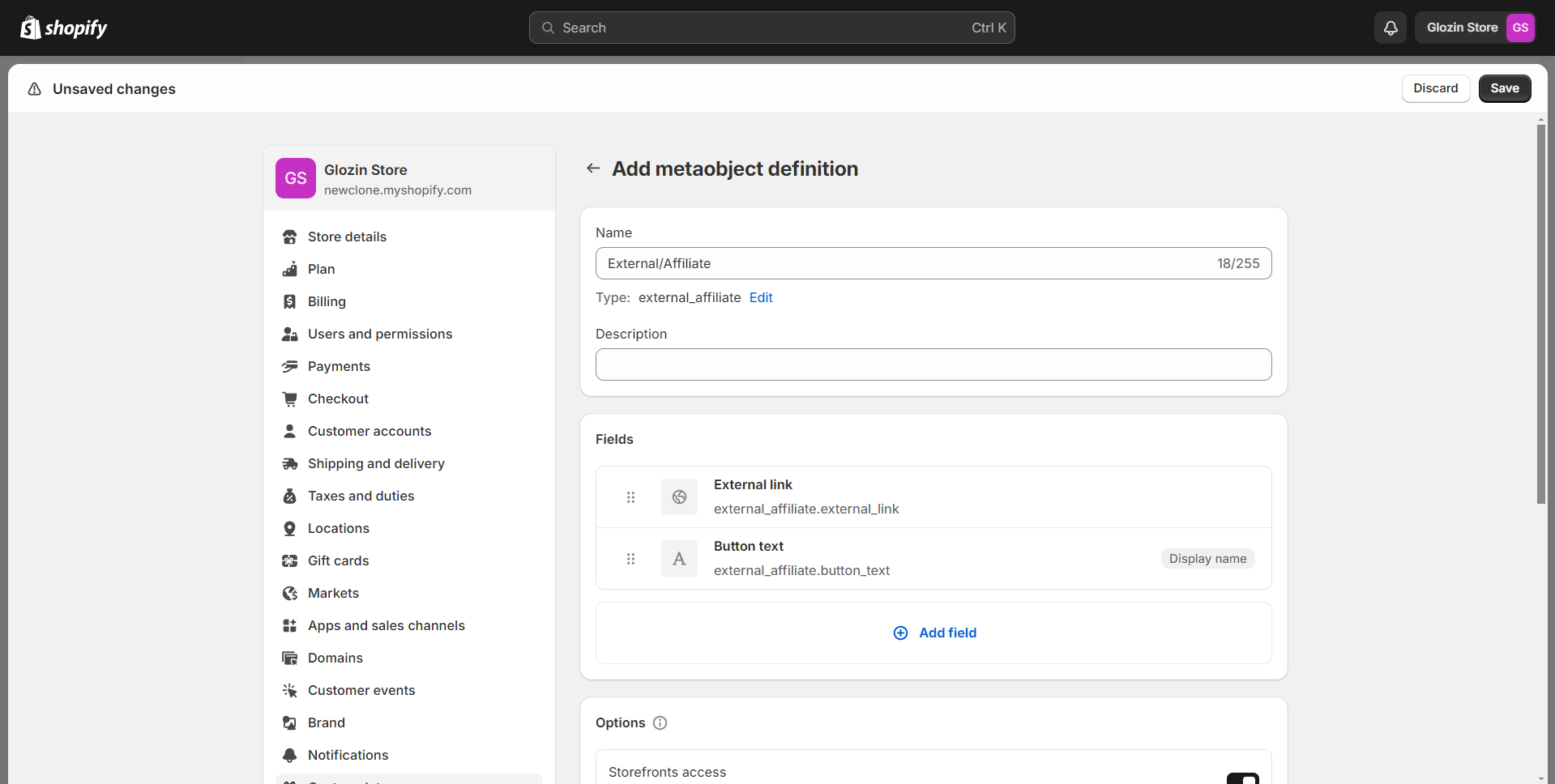
### 1. External/Affiliate
**External/Affiliate**: Link to external or affiliate products directly from your store. This metafield is perfect for merchants who partner with external vendors or participate in affiliate marketing programs, making it easy to integrate and promote third-party products.
{% hint style="success" %}
**Step 1:**
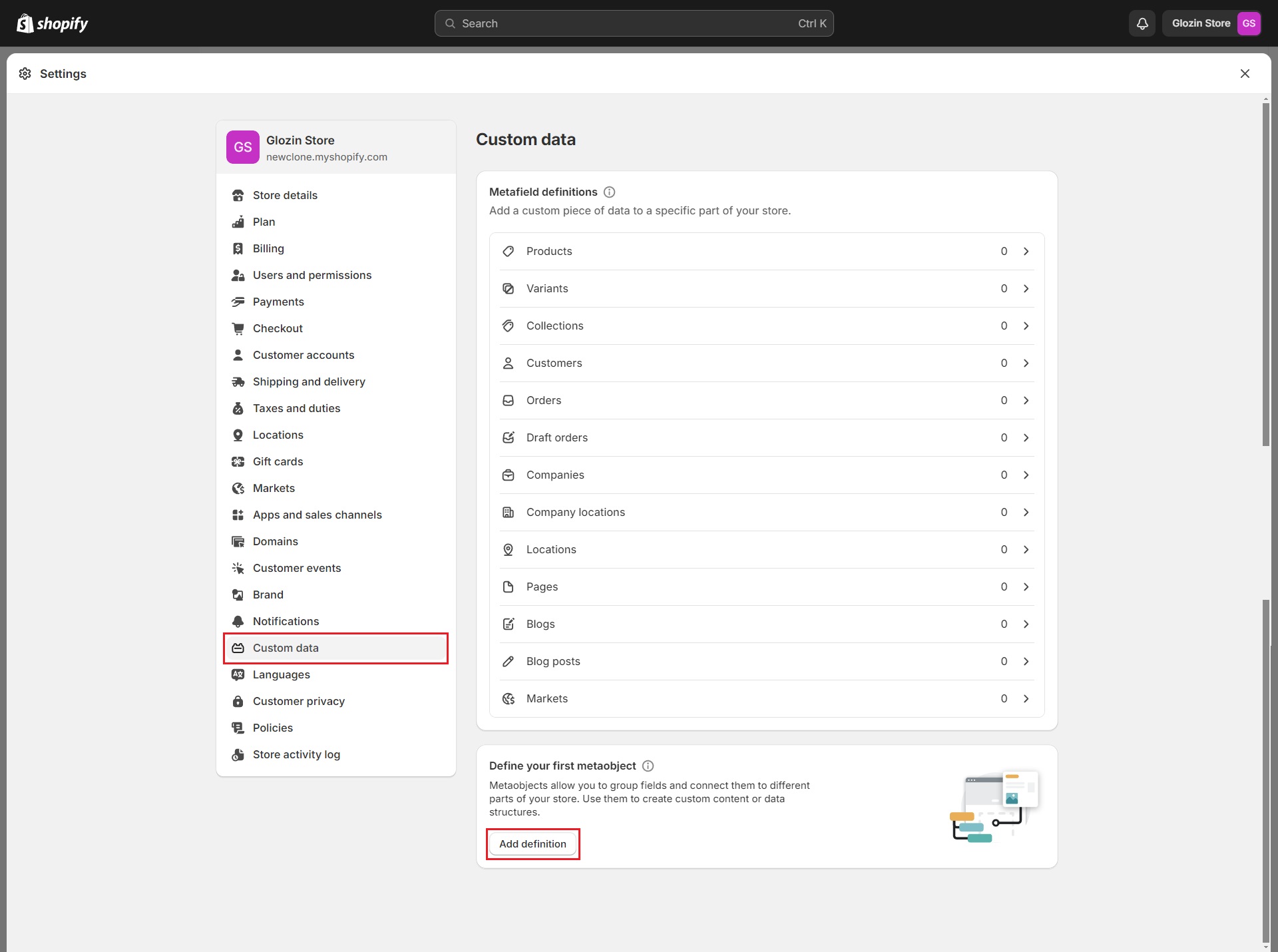
1. Login to your Shopify store, click to **Settings**
2. Click to **Custom data ->** **Metaobjects** and Click **Add definition**
3. Add metaobject definition with 2 fields as bellow:
* Name: **External/Affiliate**
* Field 1:
* Type: **URL**
* Name: **External Link**
* Field 2:
* Type: **Single line text**
* Name: **Button Text**
4. Click **Save**
{% endhint %}
{% hint style="success" %}
**Step 2:**
1. Back to **Custom data -> Metafields -> Products**
2. Add a metafield as bellow:
* Name: **External/Affiliate**
* Type: **Mixed reference**
* Validation: **External/Affiliate**
{% endhint %}
{% hint style="success" %}
**Step 3:** Close Setting and setup metafield for a product.
{% endhint %}
### 2. Product grouped
**Product Grouped**: Display a collection of related products together. This is ideal for showcasing product bundles or sets that can be purchased as a group, providing a more comprehensive shopping experience and encouraging higher average order values.
{% hint style="success" %}
Step:
1. Login to your Shopify store, click to **Settings**
2. Click to **Custom data** and select **Products**
3. Add metafields as bellow:
* Name: **Product grouped**
* Namespace and key: **custom.product\_grouped**
* Content type: **Product - List of products**
4. Click **Save**
{% endhint %}
### 3. Sub collection
**Sub Collection**: Organize products into sub-collections within a main collection. This helps in managing large inventories and makes it easier for customers to navigate through different product categories, enhancing the overall shopping experience.
{% hint style="success" %}
**Step:**
1. Login to your Shopify store, click to **Settings**
2. Click to **Custom data** and select **Collections**
3. Add metafields as bellow:
* Name: **Sub Collections**
* Namespace and key: **custom.subcollection**
* Content type: **Collection - List of collections**
4. Click **Save**
{% endhint %}
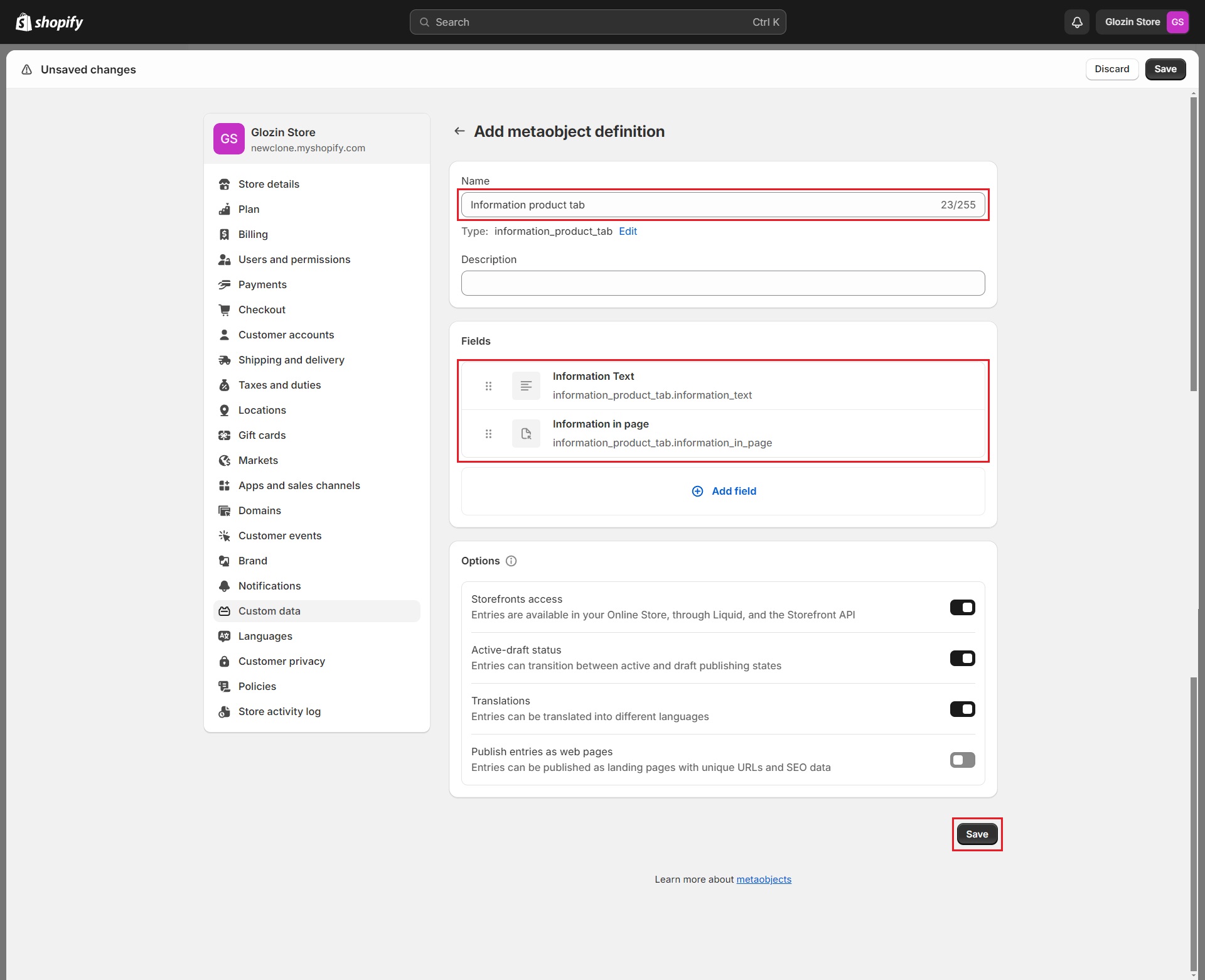
### 4. Product information tab
**Product Information Tab**: Add detailed information tabs to your product pages. These tabs can be used to provide specifications, usage instructions, reviews, or any other relevant information that helps customers make informed purchasing decisions.
{% hint style="success" %}
Step 1:
1. Login to your Shopify store, click to **Settings**
2. Click to **Custom data -->** **Metaobjects** and Click **Add definition**
3. Add metaobject definition with 2 fields as bellow:
**-** Name: **Information product tab**
\- Field 1:
\* Type: **Multi-line text**
\* Name: **Information Text**
\- Field 2:
\* Type: **Page**
\* Name: **Information in page**
{% endhint %}
{% hint style="success" %}
**Step 2:**
1. Back to **Custom data -> Metafields -> Products**
2. Add a metafield as bellow:
**-** Name: **Information product tab**
\- Namespace and key: **custom.information\_product\_tab**
\- Type: **Metaobject - One entry**
\- Reference: **Information product tab**
{% endhint %}
{% hint style="success" %}
**Step 3:** Setup metafield for a product and you can see the result.
On Shopify homepage, go to Products and select the 'Information product tab' metafields to set the content you want to display for each product
{% endhint %}
{% hint style="info" %}
**Note:** Fill in one of the two fields: **Information Text** or **Information in page**
{% endhint %}
### 5. Custom product badge
**Custom Product Badge**: Highlight specific products with custom badges. Whether it's for new arrivals, best sellers, limited edition items, or special promotions, these badges draw attention to particular products and can help boost their visibility and sales.
{% hint style="success" %}
**Steps:**
1. Login to your Shopify store, click to **Settings**
2. Click to **Custom data** and select **Products**
3. Add metafields as bellow:
* Name: **Custom product badge**
* Namespace and key: **custom.custom\_product\_badge**
* Content type: **Single line text**
4. Click **Save**
{% endhint %}
### 6. More colors
**More Colors:** When customers visit the product page, they will notice additional color or style options displayed prominently beneath the product title. This feature allows shoppers to easily explore all available variations of a product, making it simpler for them to find the exact color or style they desire. By offering a visual and accessible way to showcase product diversity, the "More Colors" feature helps boost customer engagement and increases the likelihood of a purchase.
{% hint style="success" %}
**Steps:**
1. Login to your Shopify store, click to **Settings**
2. Click to **Custom data** and select **Products**
3. Add metafields as bellow:
* Name: **More colors**
* Namespace and key: **custom.more\_colors**
* Content type: **Product - List of Products**
4. Click **Save**
{% endhint %}
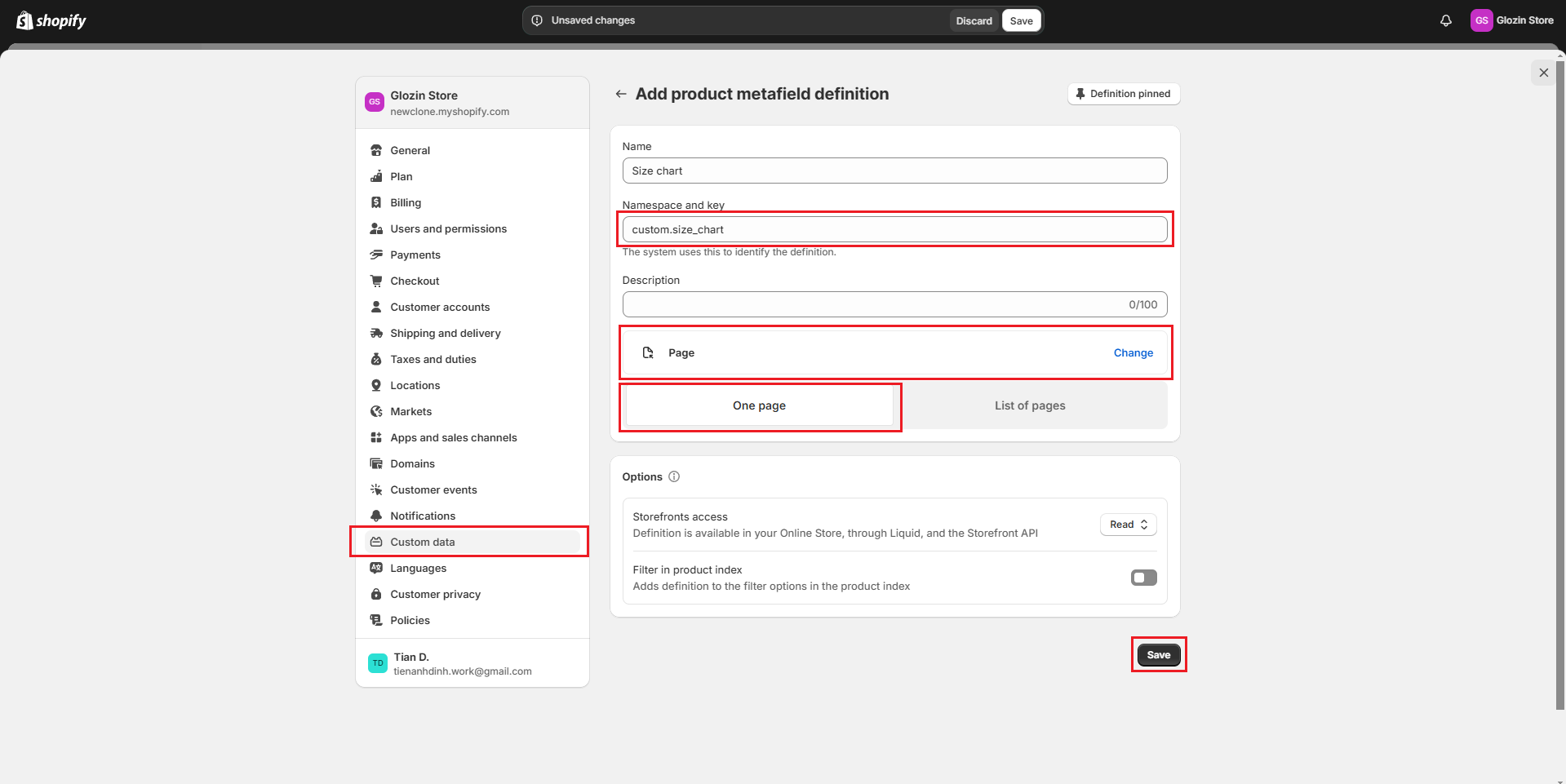
### 7. Custom Size Chart
This **Multi-line text** metafield type allows you to enter detailed size information, ensuring that customers have all the necessary details at their fingertips. Whether you need to include specific measurements, instructions, or additional notes, the multi-line text option provides ample space to accommodate comprehensive size charts, enhancing the shopping experience and helping customers make informed purchasing decisions.
{% hint style="success" %}
**Steps:**
1. Login to your Shopify store, click to **Settings**
2. Click to **Custom data** and select **Products**
3. Add metafields as bellow:
* Namespace and key (**obligatory**): **custom.size\_chart**
* Content type: **Page - One page**
4. Click **Save**
{% endhint %}
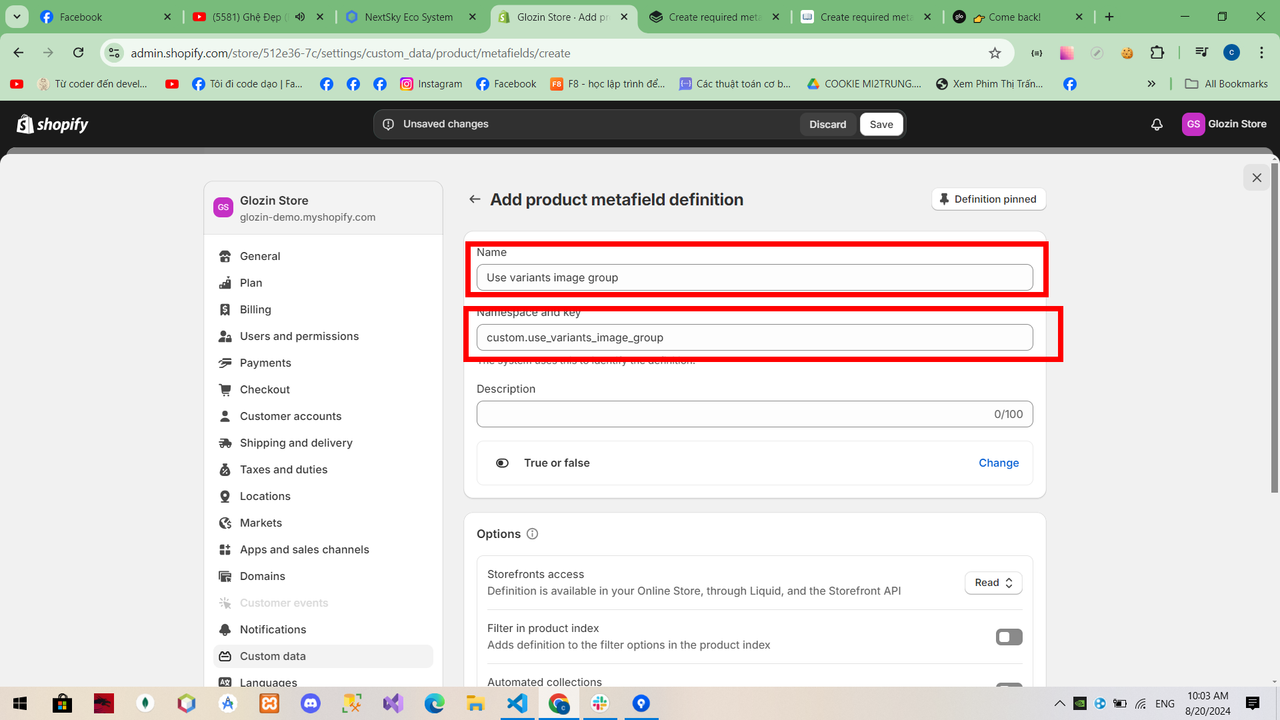
### 8. Image Variant Group
**Image Variant Group**: Display images that are related to the selected color variant. This allows customers to see variations in product appearance based on color selection directly on the product page.
{% hint style="success" %}
**Steps:**
1. Login to your Shopify store, click to **Settings**
2. Click to **Custom data** and select **Products**
3. Add metafields as bellow:
* Namespace and key (**obligatory**): custom.use\_variants\_image\_group
* Name: Use variants image group
* Content type: True or False
4. Click **Save**
{% endhint %}




.jpg?alt=media)

.png?alt=media)
.png?alt=media)
.png?alt=media)
.png?alt=media)
.png?alt=media)