> For the complete documentation index, see [llms.txt](https://nextsky.gitbook.io/glozin-theme/llms.txt). Markdown versions of documentation pages are available by appending `.md` to page URLs; this page is available as [Markdown](https://nextsky.gitbook.io/glozin-theme/get-started/purchase-code-and-activation.md).
# Purchase code & Activation
Activate or remove purchase code.
## Activate purchase code
### How to active purchase code:
{% embed url="" %}
Theme license is a unique one-time code you get after purchasing **Glozin**. A valid license is required to manage the theme and get technical support.
{% hint style="info" %}
Please follow [**this document**](https://help.market.envato.com/hc/en-us/articles/202822600-Where-Is-My-Purchase-Code) to know how to find your purchase code.
{% endhint %}
{% hint style="success" %}
**Steps:**
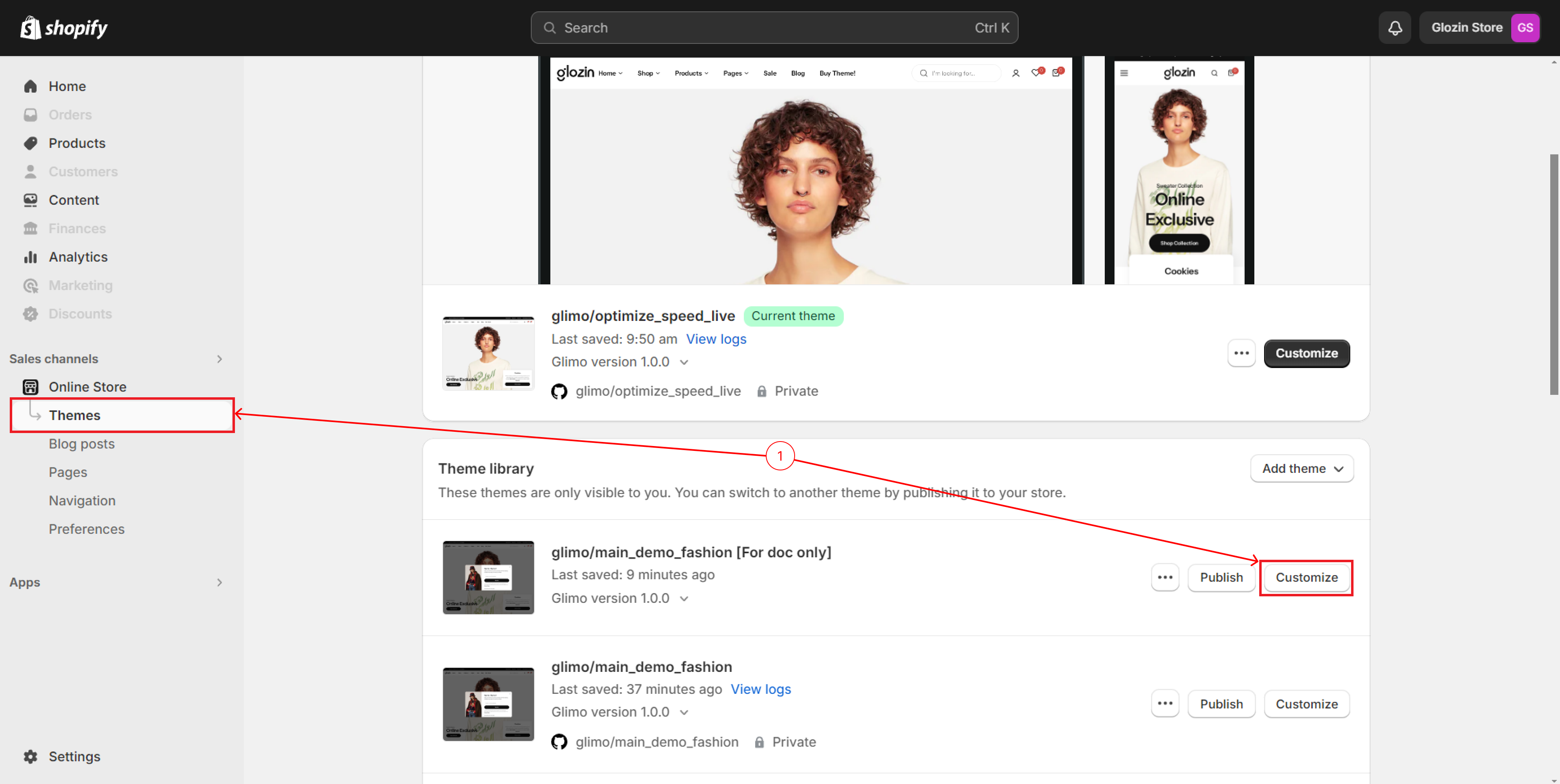
1. From your admin, click to **Online store ==> Themes ==> Customize**
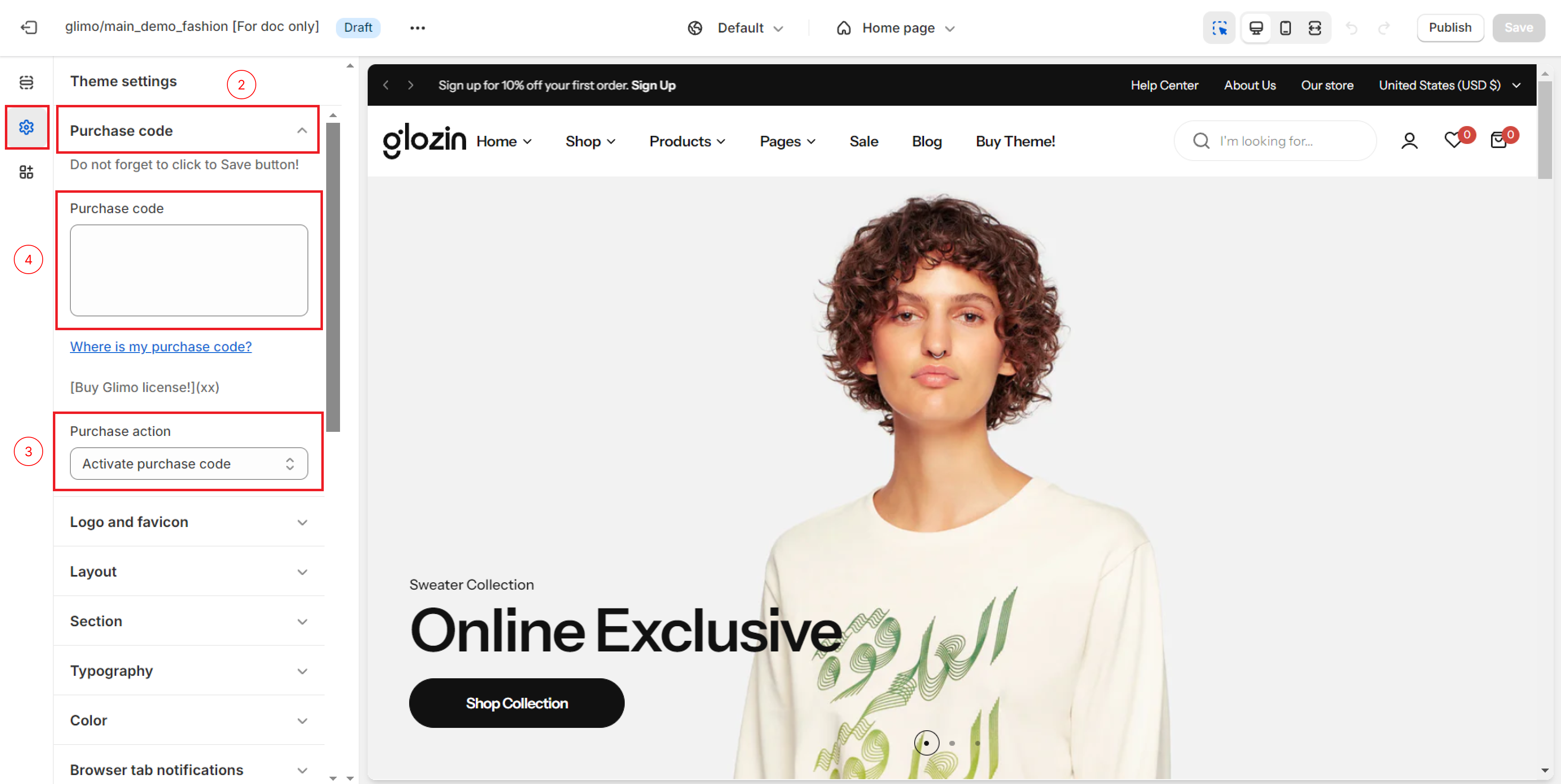
2. Click to **Theme Setting** icon in left menu and select **Purchase Code**
3. Choose **Activate purchase code**
4. Insert your **Purchase Code** and click **Save**
{% endhint %}
## Remove purchase code
{% hint style="success" %}
**Steps:**
1. From your admin, click to **Online store ==> Themes ==> Customize**
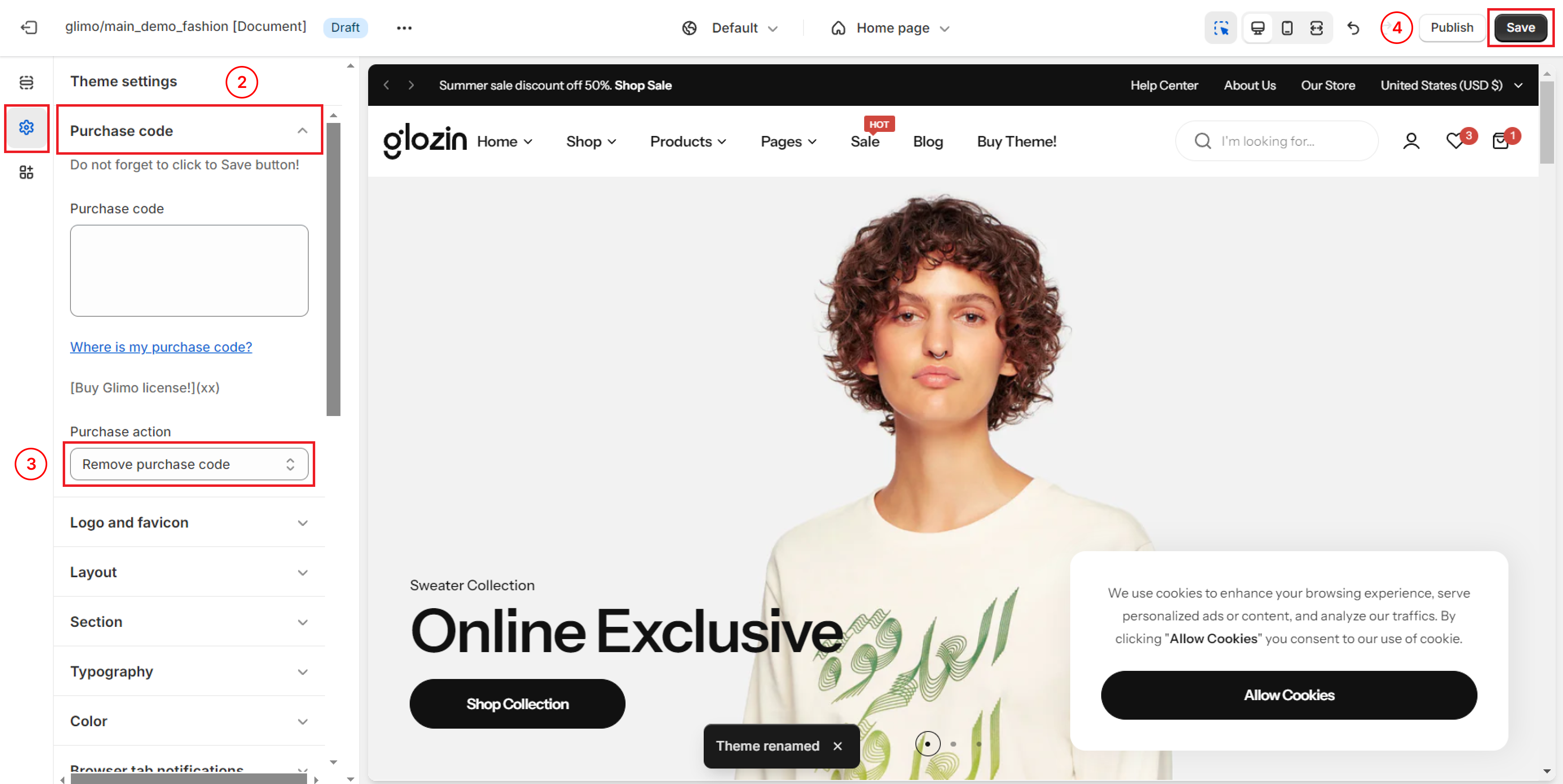
2. Click to **Theme Setting** icon in left menu and select **Purchase Code**
3. Choose **Remove purchase code**
4. Click **Save**
{% endhint %}
{% hint style="warning" %}
When you remove your purchase code, you must insert the correct purchase code that was activated to the current domain. If you insert the wrong purchase code, it will not be removed.
{% endhint %}