> For the complete documentation index, see [llms.txt](https://nextsky.gitbook.io/glozin-theme/llms.txt). Markdown versions of documentation pages are available by appending `.md` to page URLs; this page is available as [Markdown](https://nextsky.gitbook.io/glozin-theme/other-pages-settings/contact.md).
# Contact
You can add a contact page to your store to let customers get in touch with you.
{% hint style="success" %}
Steps
1. In the theme editor **(Customize)**, open the template selector
2. Select **Pages**, then **Contact.**
3. Make necessary changes
4. **Save**
{% endhint %}
## Section settings
**Section width:** You can choose among Fluid container, Full width, Stretch width for the banner layout.
**Color scheme:** Set text color and background color with preset scheme
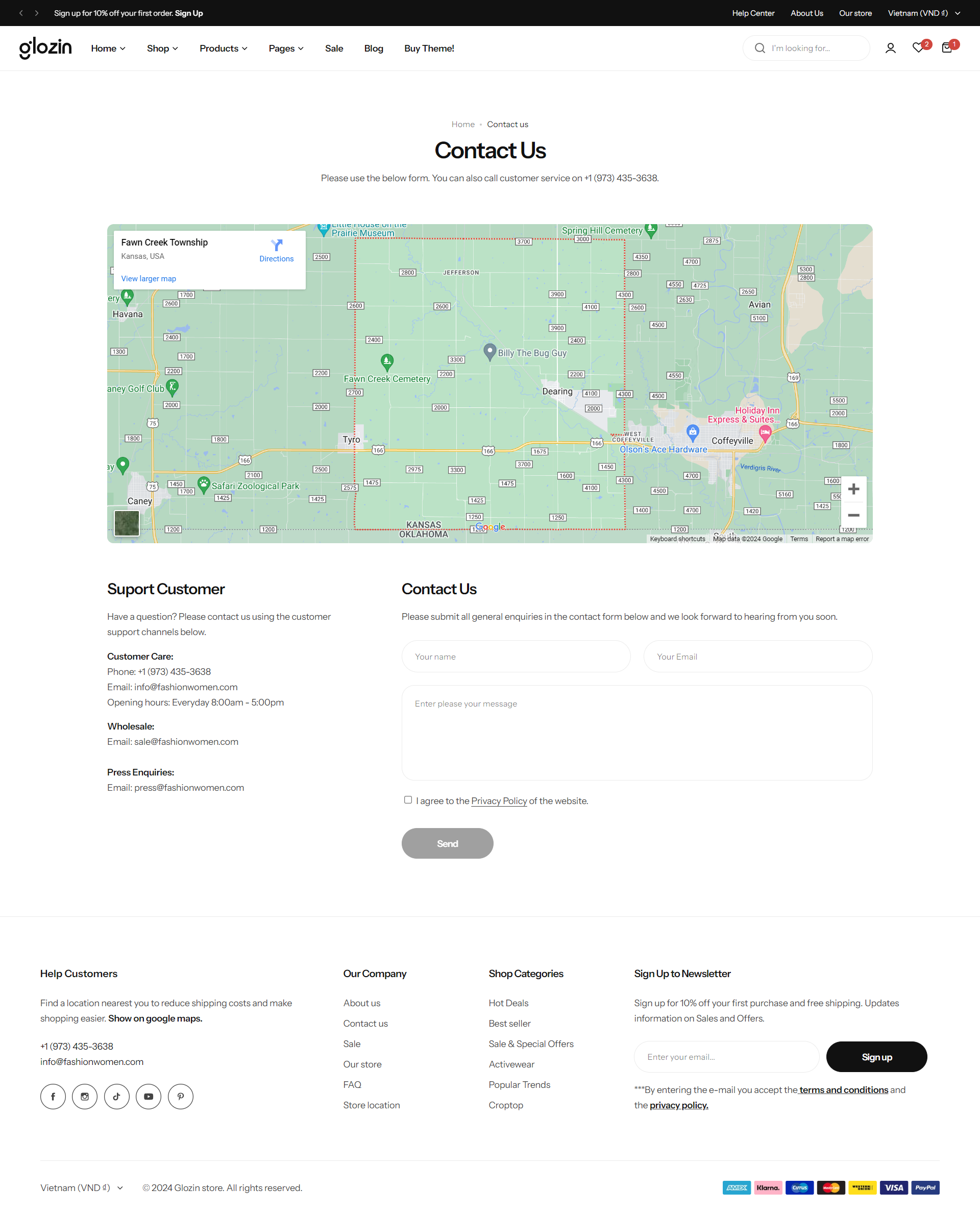
**Iframe:** This refers to the embed code you can obtain from Google Maps, allowing you to integrate maps directly into your website or digital content for easy location referencing.
**Column gap:** The spacing between two columns.
Section padding allows you to specify the space between this section and the preceding or following sections, or both.
## Block settings
Utilize the text fields provided to input your desired content. If you prefer not to display any content, simply leave the fields blank. This allows for enhanced control over the appearance and readability of your text on the page.
### Text block
### Contact
.png?alt=media)
.png?alt=media)
.png?alt=media)
.png?alt=media)
.png?alt=media)