> For the complete documentation index, see [llms.txt](https://nextsky.gitbook.io/purity-theme/llms.txt). Markdown versions of documentation pages are available by appending `.md` to page URLs; this page is available as [Markdown](https://nextsky.gitbook.io/purity-theme/global-sections/header-group/header.md).

# Header

The **Header** on an e-commerce website enhances user experience by providing easy navigation, reinforcing branding, enabling quick search, displaying cart previews, offering contact information, showcasing promotions, and ensuring a consistent, user-friendly design across all pages.

<figure><img src="https://1059363070-files.gitbook.io/~/files/v0/b/gitbook-x-prod.appspot.com/o/spaces%2FRcDJSoM26kdEZlVFekVW%2Fuploads%2Fya0wjrXYpuCnHFAYdNe0%2Fimage.png?alt=media&amp;token=3d52566d-499e-4ad9-9175-0aa19f91c7c1" alt=""><figcaption></figcaption></figure>

## 1. Header settings

### General settings

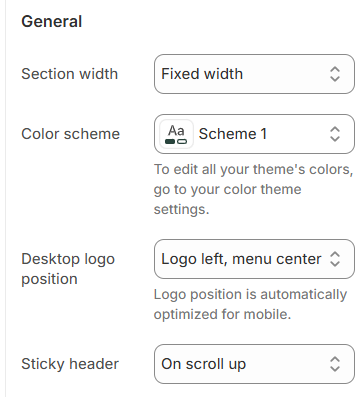
Customize the overall layout, color scheme, logo position, and header behavior for your section.

<figure><img src="https://1059363070-files.gitbook.io/~/files/v0/b/gitbook-x-prod.appspot.com/o/spaces%2FRcDJSoM26kdEZlVFekVW%2Fuploads%2F5GzKI2PkzAE9u6RVY153%2FScreenshot_102.png?alt=media&amp;token=7f1b4804-97ec-484a-a7ac-d9b1266e09a2" alt=""><figcaption></figcaption></figure>

<table><thead><tr><th width="215">Setting</th><th>Description</th></tr></thead><tbody><tr><td><strong>Section width</strong></td><td><p>3 options for container</p><ul><li><strong>Stretch width</strong>: span the section width regardless of screen size.</li><li><strong>Fixed width</strong>: depends on your page content width in <strong>Theme settings</strong> <strong>-></strong> <strong>Layout</strong>.</li><li><strong>Full width</strong>: takes up the entire space on the page and it usually resizes itself to fit the size of the screen.</li></ul></td></tr><tr><td><strong>Color scheme</strong></td><td>Select colors from <strong>Theme settings -> Colors</strong></td></tr><tr><td><strong>Desktop header layout</strong></td><td><p>5 options position logo desktop</p><ul><li><strong>Logo left, menu center</strong></li><li><strong>Logo left, menu below</strong></li><li><strong>Logo left, menu left</strong></li><li><strong>Logo center, menu left</strong></li><li><strong>Logo center, menu below</strong></li></ul><p><em>Note: Logo position is automatically optimized for mobile.</em></p></td></tr><tr><td><strong>Sticky header</strong></td><td><p>3 options sticky</p><ul><li><strong>None</strong>: Do not display the sticky header</li><li><strong>On scroll up</strong>: Display only on scroll up</li><li><strong>Always</strong>: Always display</li></ul></td></tr></tbody></table>

### Menu

Customize your site's main menu by selecting a menu and configuring how the desktop dropdown menu is triggered, as well as the dropdown animation style.

<figure><img src="https://1059363070-files.gitbook.io/~/files/v0/b/gitbook-x-prod.appspot.com/o/spaces%2FRcDJSoM26kdEZlVFekVW%2Fuploads%2FllRahLMYkYtwjkDqd6mF%2Fimage.png?alt=media&amp;token=cca78b9a-f6e3-4bac-9c9e-623453beea3d" alt="" width="264"><figcaption></figcaption></figure>

<table><thead><tr><th width="215">Setting</th><th>Description</th></tr></thead><tbody><tr><td><strong>Menu</strong></td><td>Select which menu will be used as the main navigation for your site.</td></tr><tr><td><strong>Desktop dropdown menu trigger</strong></td><td>Choose how the dropdown menu on desktop is triggered — either by clicking or hovering over the menu item.</td></tr><tr><td><strong>Dropdowns animation</strong></td><td><p>Select the animation style for the dropdown menus when they appear.</p><ul><li><strong>Fade in</strong>: Dropdown fades in smoothly.</li><li><strong>Fade in down</strong>: Dropdown fades in while moving downward.</li><li><strong>Down to up</strong>: Dropdown appears with a motion from bottom to top</li></ul></td></tr></tbody></table>

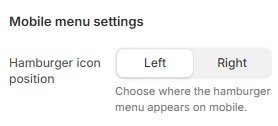
### Mobile menu settings

Add a banner image and link to enhance your mobile menu experience.

<figure><img src="https://1059363070-files.gitbook.io/~/files/v0/b/gitbook-x-prod.appspot.com/o/spaces%2FRcDJSoM26kdEZlVFekVW%2Fuploads%2FbHgSqTRoiKPEghUuBkNH%2Fimage.png?alt=media&amp;token=c4243b6f-30d2-4ee1-a747-dd38d631ba1c" alt=""><figcaption></figcaption></figure>

<table><thead><tr><th width="215">Setting</th><th>Description</th></tr></thead><tbody><tr><td><strong>Hamburger icon position</strong></td><td>Choose where the hamburger menu appears on mobile.</td></tr></tbody></table>

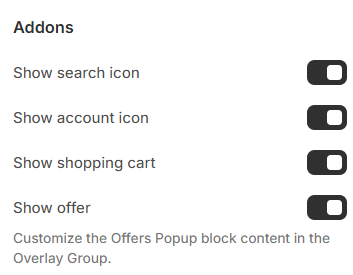
### Addons

Addons offer additional settings for the header, including features like search, currency selector, language selector, and more. Enable the relevant checkboxes to activate them.

<figure><img src="https://1059363070-files.gitbook.io/~/files/v0/b/gitbook-x-prod.appspot.com/o/spaces%2FRcDJSoM26kdEZlVFekVW%2Fuploads%2FvBcezXNBBGPWRy8CFu34%2FScreenshot_103.png?alt=media&amp;token=937755a8-d05c-4278-b468-7f02715ec157" alt=""><figcaption></figcaption></figure>

<table><thead><tr><th width="215">Setting</th><th>Description</th></tr></thead><tbody><tr><td><strong>Show search icon</strong></td><td>Display a search icon in the header for quick product searches.</td></tr><tr><td><strong>Show account icon</strong></td><td>Show an account/login icon in the header.</td></tr><tr><td><strong>Show shopping cart</strong></td><td>Enable the shopping cart icon in the header.</td></tr><tr><td><strong>Show offer</strong></td><td>Enable the offer icon</td></tr></tbody></table>

### Country/language selector

<figure><img src="https://1059363070-files.gitbook.io/~/files/v0/b/gitbook-x-prod.appspot.com/o/spaces%2FRcDJSoM26kdEZlVFekVW%2Fuploads%2FyNJby7LzpH7vfkRzQn8v%2Fimage.png?alt=media&amp;token=eef79019-c4bd-4102-ba47-beb5962a0929" alt=""><figcaption></figcaption></figure>

To add a country/region, go to your [market settings.](https://admin.shopify.com/store/gorde-theme/settings/markets). To add a language, go to your [language settings.](https://admin.shopify.com/store/gorde-theme/settings/languages)

<table><thead><tr><th width="215">Setting</th><th>Description</th></tr></thead><tbody><tr><td><strong>Show currency</strong></td><td>Display country/region selector</td></tr><tr><td><strong>Show language</strong></td><td>Display language selector</td></tr></tbody></table>

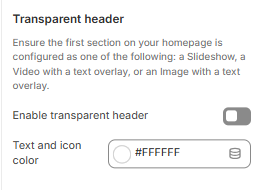
### Transparent header

A transparent header is a see-through top section on a website or mobile app, allowing the content or background to show through instead of having a solid color background.

Ensure the first section on your homepage is configured as one of the following: a Slideshow, a Video with a text overlay, or an Image with a text overlay.

<figure><img src="https://1059363070-files.gitbook.io/~/files/v0/b/gitbook-x-prod.appspot.com/o/spaces%2FRcDJSoM26kdEZlVFekVW%2Fuploads%2FD4GFESchhHKxK1HRcr7Y%2Fimage.png?alt=media&amp;token=21c8c4aa-35b3-4195-9714-b68c312e5c56" alt=""><figcaption></figcaption></figure>

<table><thead><tr><th width="178">Setting</th><th>Description</th></tr></thead><tbody><tr><td><strong>Enable transparent header</strong></td><td>Display as transparent only on the homepage</td></tr><tr><td><strong>Text and icon</strong></td><td>Customize the color of text and icons in transparent header format</td></tr></tbody></table>

### Section padding

<figure><img src="https://1059363070-files.gitbook.io/~/files/v0/b/gitbook-x-prod.appspot.com/o/spaces%2FRcDJSoM26kdEZlVFekVW%2Fuploads%2F4284mWNt0tbI2qlPhTQ2%2Fimage.png?alt=media&amp;token=317310ad-a8f0-463b-b618-91d5bfda4ec4" alt=""><figcaption></figcaption></figure>

<table><thead><tr><th width="215">Setting</th><th>Description</th></tr></thead><tbody><tr><td><strong>Top</strong></td><td>Customize the top margin of the section</td></tr><tr><td><strong>Bottom</strong></td><td>Customize the bottom margin of the section</td></tr></tbody></table>

## 2. Block settings

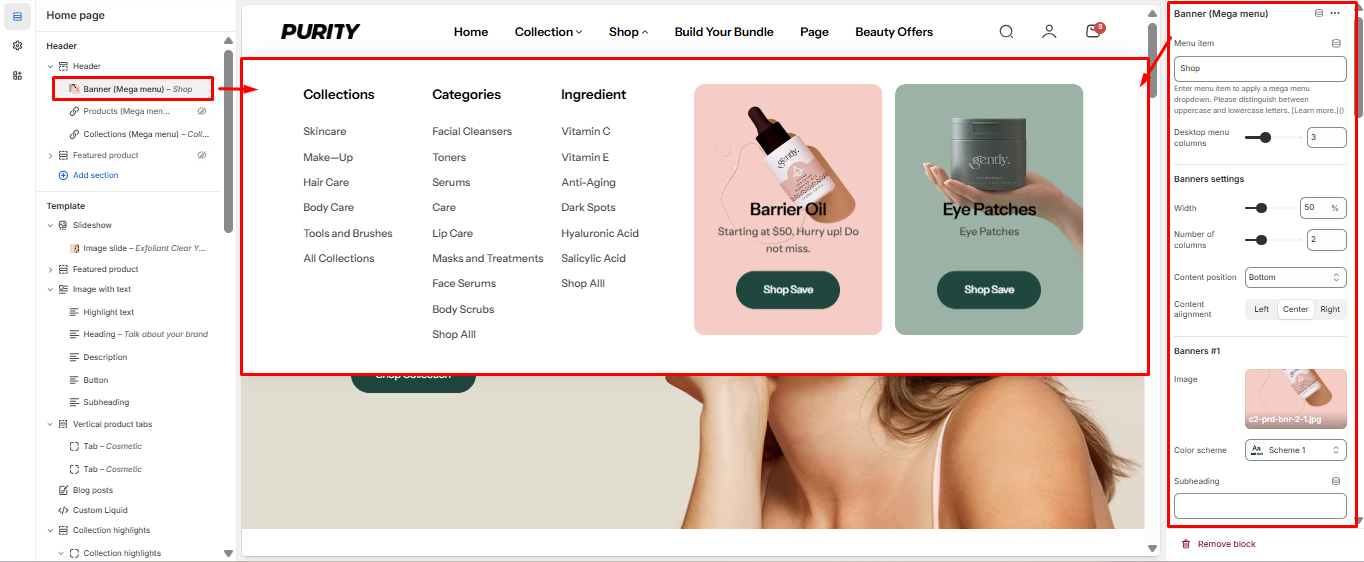
### Banner ( Mega menu )

<figure><img src="https://1059363070-files.gitbook.io/~/files/v0/b/gitbook-x-prod.appspot.com/o/spaces%2FRcDJSoM26kdEZlVFekVW%2Fuploads%2FBdzwuZomsBMCvYfsnBmH%2Fimage.png?alt=media&amp;token=63075a76-34fc-40a1-abd0-abe8c8160b04" alt=""><figcaption></figcaption></figure>

<table><thead><tr><th width="215">Setting</th><th>Description</th></tr></thead><tbody><tr><td><strong>Menu item</strong></td><td>Enter the name of the level 1 menu to display the mega menu dropdown. Please distinguish between uppercase and lowercase letters.</td></tr><tr><td><strong>Desktop menu columns</strong></td><td>Choose the number of column</td></tr><tr><td><strong>Width</strong></td><td>Adjust the width of each banner as a percentage of the total container.</td></tr><tr><td><strong>Number of columns</strong></td><td>Set how many banners are displayed per row.</td></tr><tr><td><strong>Content position</strong></td><td>Select the position of the banner content, either below the image or overlayed on the image (top, middle, or bottom).</td></tr><tr><td><strong>Content alignment</strong></td><td>Set the horizontal alignment of the content (left, center, or right).</td></tr><tr><td><strong>Image</strong></td><td>Upload or select the banner image. <em><strong>(448px x 260px recommended)</strong></em></td></tr></tbody></table>

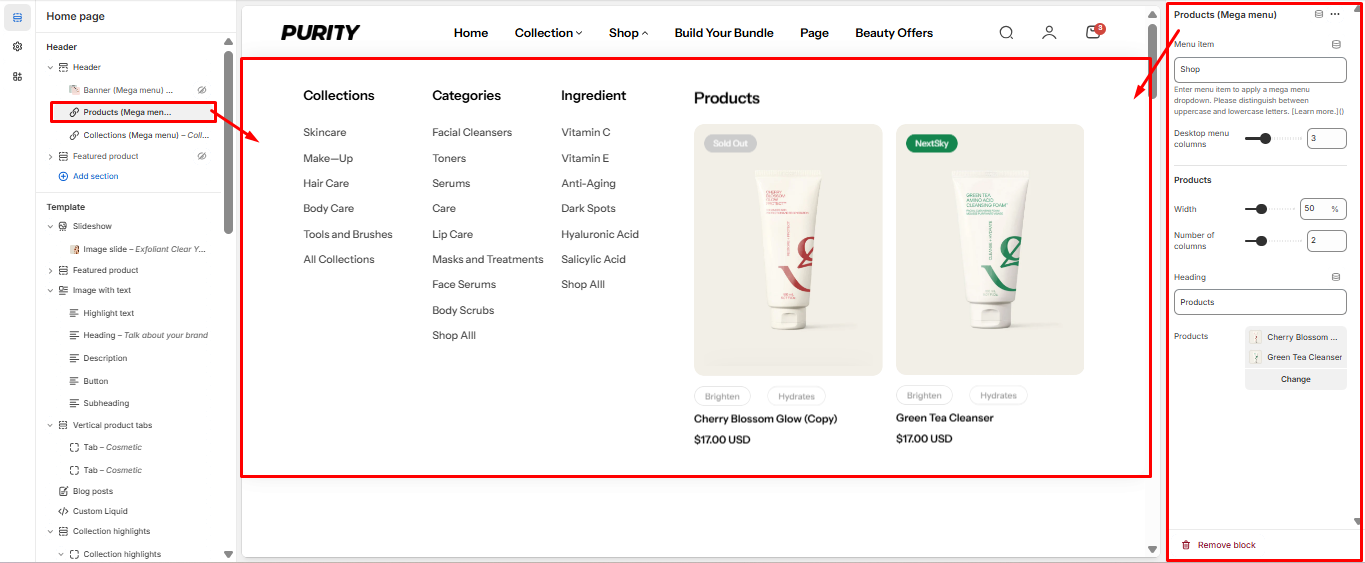
### Product ( Mega Menu )

<figure><img src="https://1059363070-files.gitbook.io/~/files/v0/b/gitbook-x-prod.appspot.com/o/spaces%2FRcDJSoM26kdEZlVFekVW%2Fuploads%2FxRcwGtOgMBkFgIgxob6n%2Fimage.png?alt=media&amp;token=d9a6648e-8f13-433f-aaa5-743d4118092f" alt=""><figcaption></figcaption></figure>

<table><thead><tr><th width="215">Setting</th><th>Description</th></tr></thead><tbody><tr><td><strong>Menu item</strong></td><td>Enter the name of the level 1 menu to display the mega menu dropdown. Please distinguish between uppercase and lowercase letters.</td></tr><tr><td><strong>Desktop menu columns</strong></td><td>Choose the number of column</td></tr><tr><td><strong>Width</strong></td><td>Adjust the width of the product display area (%).</td></tr><tr><td><strong>Number of columns</strong></td><td>Set the number of product columns to display.</td></tr><tr><td><strong>Heading</strong></td><td>Enter a title for the product section.</td></tr><tr><td><strong>Products</strong></td><td>Select the products you want to display</td></tr></tbody></table>

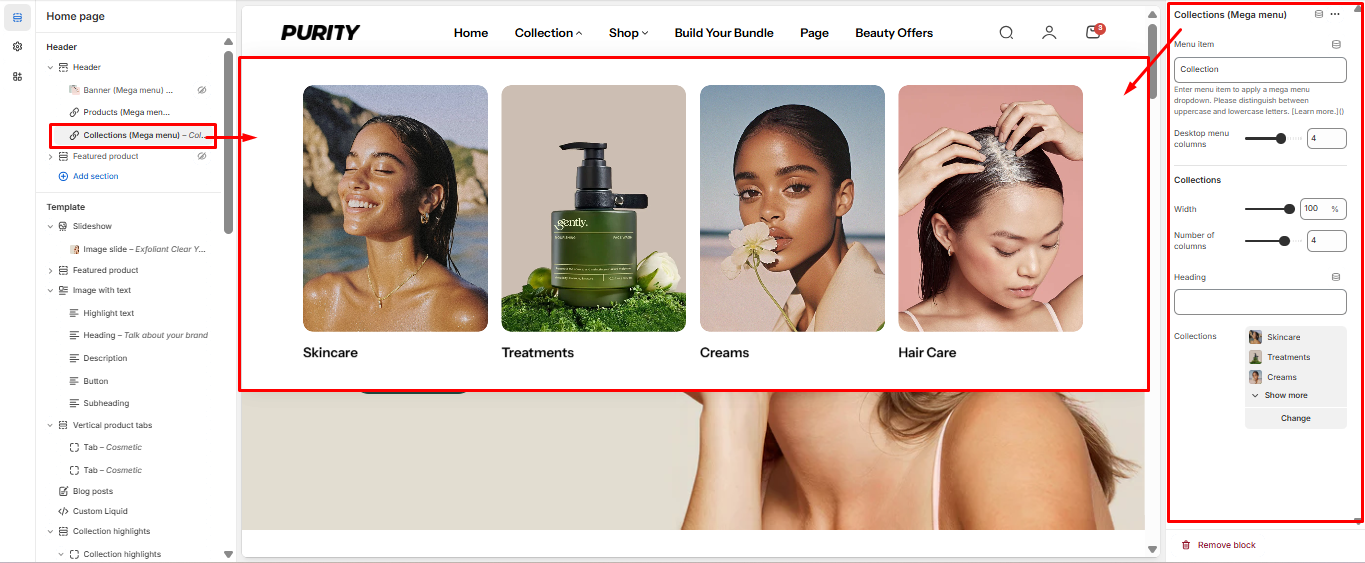
### Collection ( Mega Menu )

<figure><img src="https://1059363070-files.gitbook.io/~/files/v0/b/gitbook-x-prod.appspot.com/o/spaces%2FRcDJSoM26kdEZlVFekVW%2Fuploads%2F6u3n5ydugBZxRgO6meJJ%2Fimage.png?alt=media&amp;token=fdff6177-7546-4015-9c27-bfc0c16a186f" alt=""><figcaption></figcaption></figure>

<table><thead><tr><th width="215">Setting</th><th>Description</th></tr></thead><tbody><tr><td><strong>Menu item</strong></td><td>Enter the name of the level 1 menu to display the mega menu dropdown. Please distinguish between uppercase and lowercase letters.</td></tr><tr><td><strong>Desktop menu columns</strong></td><td>Choose the number of column</td></tr><tr><td><strong>Width</strong></td><td>Adjust the width of the collection display area (%).</td></tr><tr><td><strong>Number of columns</strong></td><td>Set the number of collection columns to display.</td></tr><tr><td><strong>Heading</strong></td><td>Enter a title for the collection section.</td></tr><tr><td><strong>Collections</strong></td><td>Select the collections you want to display</td></tr></tbody></table>

### Menu highlight

<figure><img src="https://1059363070-files.gitbook.io/~/files/v0/b/gitbook-x-prod.appspot.com/o/spaces%2FRcDJSoM26kdEZlVFekVW%2Fuploads%2FkudwYw6Y0g0qT4MXCjzn%2Fimage.png?alt=media&amp;token=3f2567a9-8b71-4f6d-8150-c6bba1dfaefe" alt=""><figcaption></figcaption></figure>

<table><thead><tr><th width="215">Setting</th><th>Description</th></tr></thead><tbody><tr><td><strong>Menu items to highlight</strong></td><td>Define which menu items to highlight with the selected color and icon.<br>**<em>Note: This feature works with Level 1 menu items only.</em></td></tr><tr><td><strong>Highlight color</strong></td><td>Define a color to highlight your menu items.</td></tr><tr><td><strong>Highlight icon</strong></td><td>Select an icon to show next to the menu items.</td></tr></tbody></table>