> For the complete documentation index, see [llms.txt](https://nextsky.gitbook.io/purity-theme/llms.txt). Markdown versions of documentation pages are available by appending `.md` to page URLs; this page is available as [Markdown](https://nextsky.gitbook.io/purity-theme/group-sections/products/outfit-finder.md).
# Outfit finder
### Section settings
#### General settings
| Setting | Description |
| ---------------- | ----------------------------------------------- |
| **Color scheme** | Select colors from **Theme settings -> Colors** |
#### Section header
| Setting | Description |
| -------------------------------------- | --------------------------------------------------------------------------------------------------------------------------------------------------------- |
| **Subheading** | Use the subheading to provide additional context, supporting information, or a short description. |
| **Heading** | The primary text element used to introduce or label the content within this section. |
| **Enable heading underline animation** | Enable heading underline animation |
| **Underline style** | Select Underline style |
| **Underline color** | Customize Underline color |
| **Description** | A text element used to provide additional details or supporting information related to the heading or content of the section. |
| **Heading size** |
The size of the title:
Small
Medium
Large
|
| **Alignment** |
The position of the heading and description.
Left
Center
Right
|
#### Product listing settings
| Setting | Description |
| ---------------------------- | ---------------------------------------------------------------------------------------------------------------------------------------------------------------------- |
| **Products per page** | Limit the display of the number of products. Minimum: 1. Maximum: 24. |
| **Items per row on desktop** | Number of columns to display on desktop computers. Minimum: 2. Maximum: 4. |
| **Column gap** |
4 options for column gap
No gap
Small
Medium
Large
|
#### Preview settings
| Setting | Description |
| ---------------------------- | ---------------------------------------------------------------------------------------- |
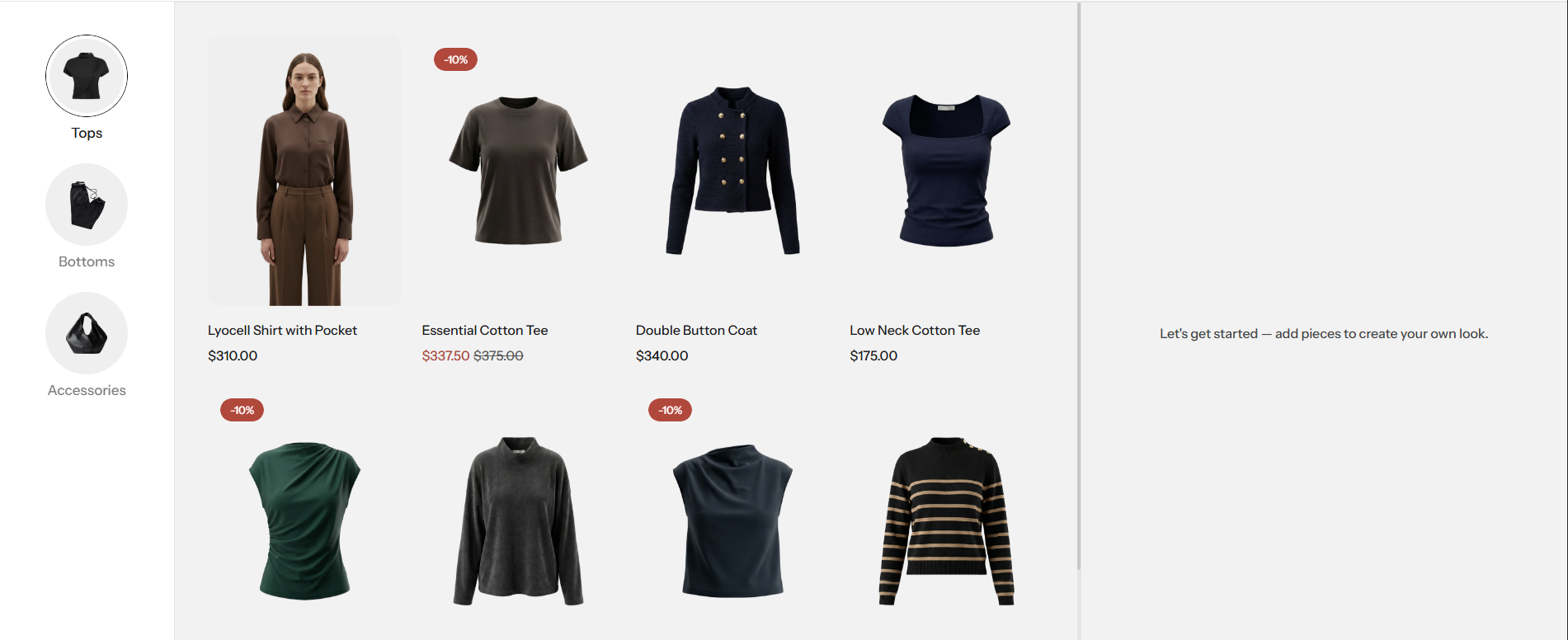
| **Suggested outfit** | Select products to be shown in the preview area by default when the page loads. |
| **Max products per outfit** | Set the maximum number of products a customer can add to the preview area. |
| **Empty state notification** | Customize the guidance text displayed in the preview area before any products are added. |
#### Section padding
| Setting | Description |
| ---------- | ------------------------------------------ |
| **Top** | Customize the top margin of the section |
| **Bottom** | Customize the bottom margin of the section |