# Color swatches

A guide to customizing **Color swatches** for your store’s products, helping you showcase variants more visually and improve the shopping experience.

<figure><img src="https://1059363070-files.gitbook.io/~/files/v0/b/gitbook-x-prod.appspot.com/o/spaces%2FRcDJSoM26kdEZlVFekVW%2Fuploads%2F0lMMdpjOAKZosNY6xAzd%2Fimage.png?alt=media&#x26;token=81b422d8-4860-4f48-aa77-347042d79973" alt=""><figcaption></figcaption></figure>

<table><thead><tr><th width="215">Setting</th><th>Description</th></tr></thead><tbody><tr><td><strong>Hide sold out variants</strong></td><td>Hide swatches for color variants that are out of stock.</td></tr><tr><td><strong>Color shape</strong></td><td>Select the shape of the color swatch: Choose either <strong>round</strong> or <strong>square</strong>.</td></tr></tbody></table>

### **Swatch type**

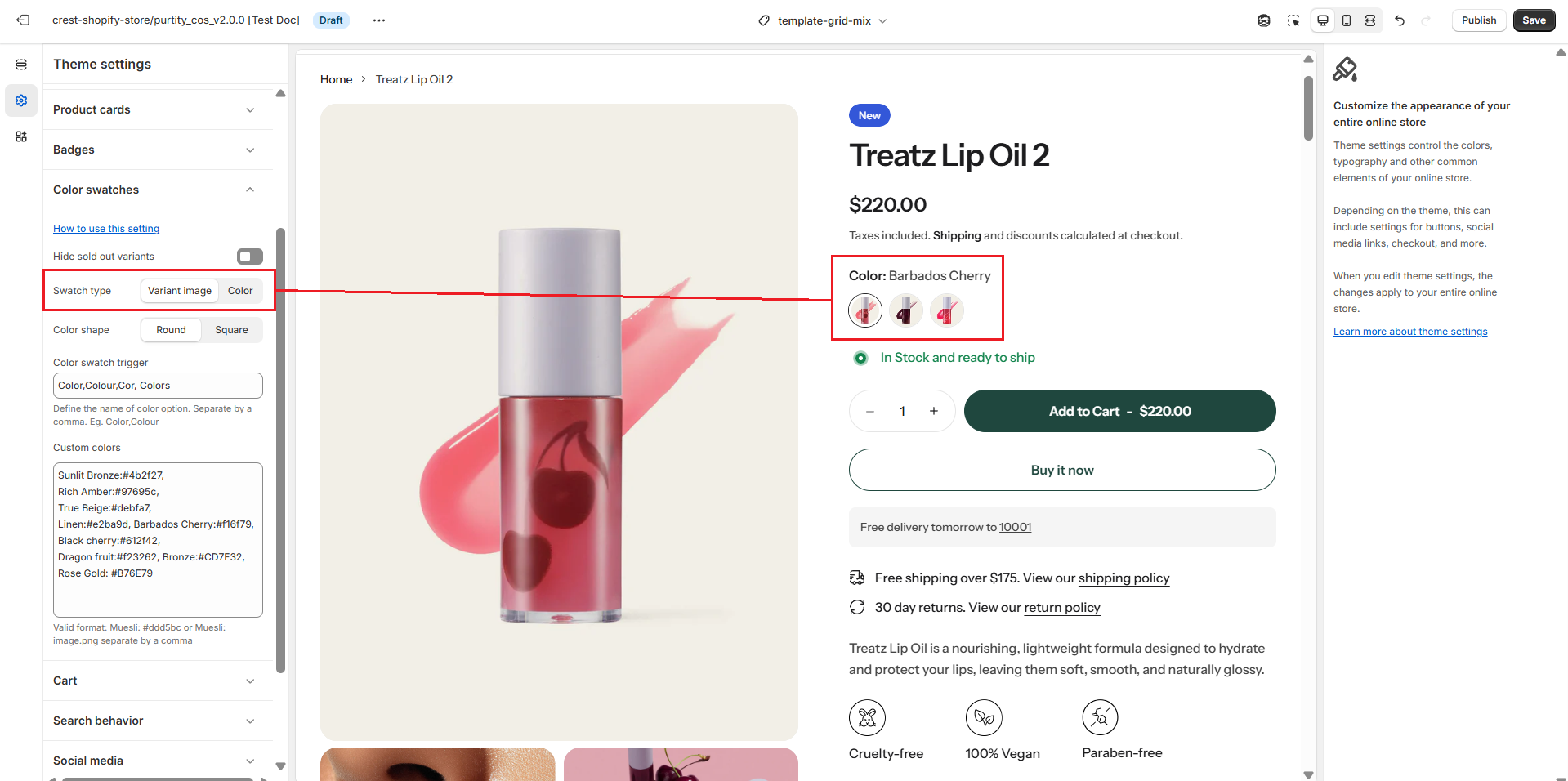
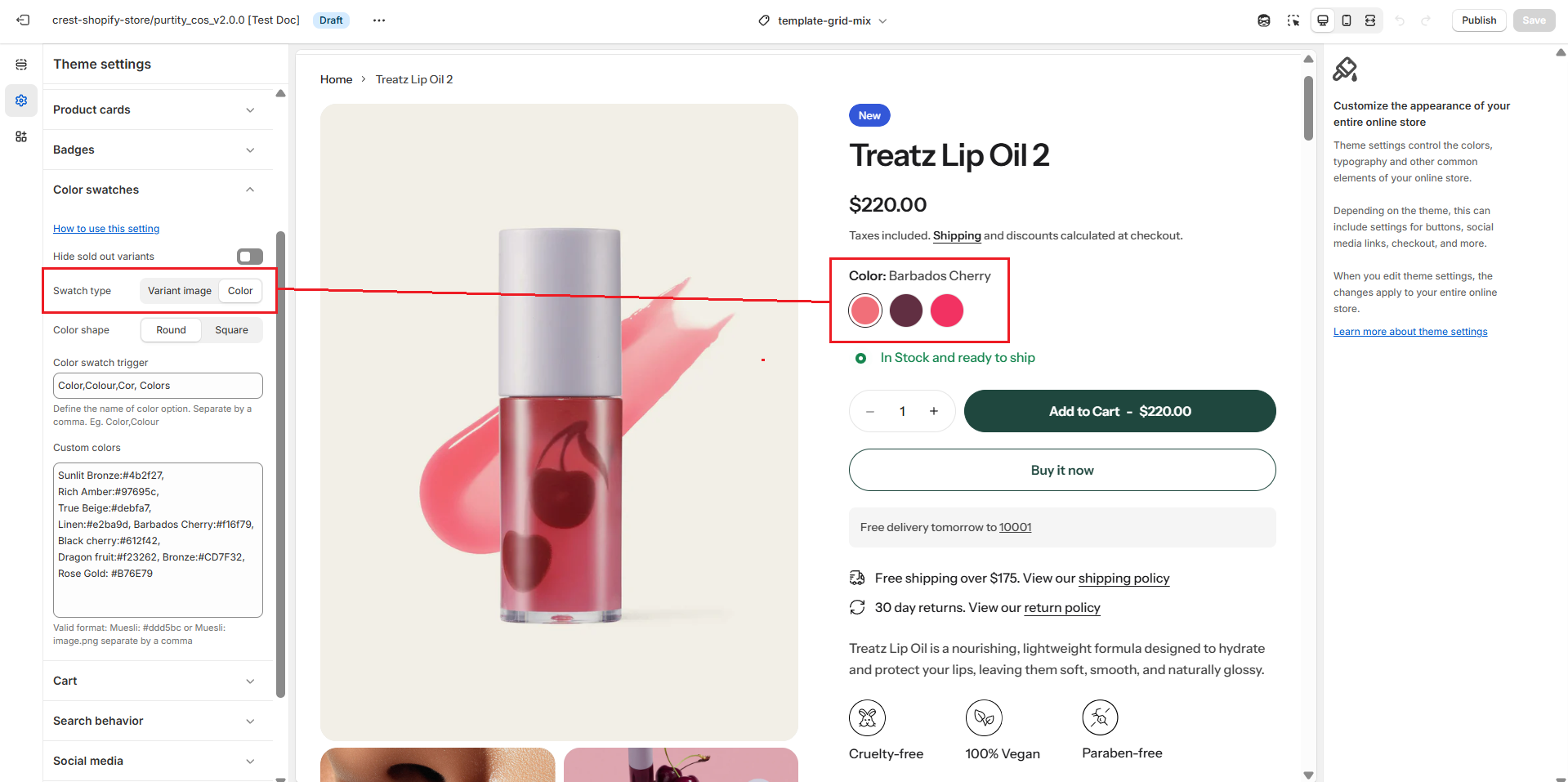
Choose how to display product variants:

* **Variant image** – Displays the image assigned to each variant as the swatch.
* **Color** – Displays a solid color swatch or a custom image based on the selected color option and any custom colors you define.

{% tabs %}
{% tab title="Variant image" %}

<figure><img src="https://1059363070-files.gitbook.io/~/files/v0/b/gitbook-x-prod.appspot.com/o/spaces%2FRcDJSoM26kdEZlVFekVW%2Fuploads%2FyYReN9nsjDMTp88hCW7Z%2FScreenshot%202025-08-09%20003708.png?alt=media&#x26;token=8384e3e5-4020-4182-b9ad-ffd0697a3def" alt=""><figcaption></figcaption></figure>
{% endtab %}

{% tab title="Color" %}

<figure><img src="https://1059363070-files.gitbook.io/~/files/v0/b/gitbook-x-prod.appspot.com/o/spaces%2FRcDJSoM26kdEZlVFekVW%2Fuploads%2FsNuIh9KdoPCyUP1ukeMT%2FScreenshot%202025-08-09%20003655.png?alt=media&#x26;token=af141e89-1176-4f21-a141-448030ab2561" alt=""><figcaption></figcaption></figure>
{% endtab %}
{% endtabs %}

### **Color swatch trigger**

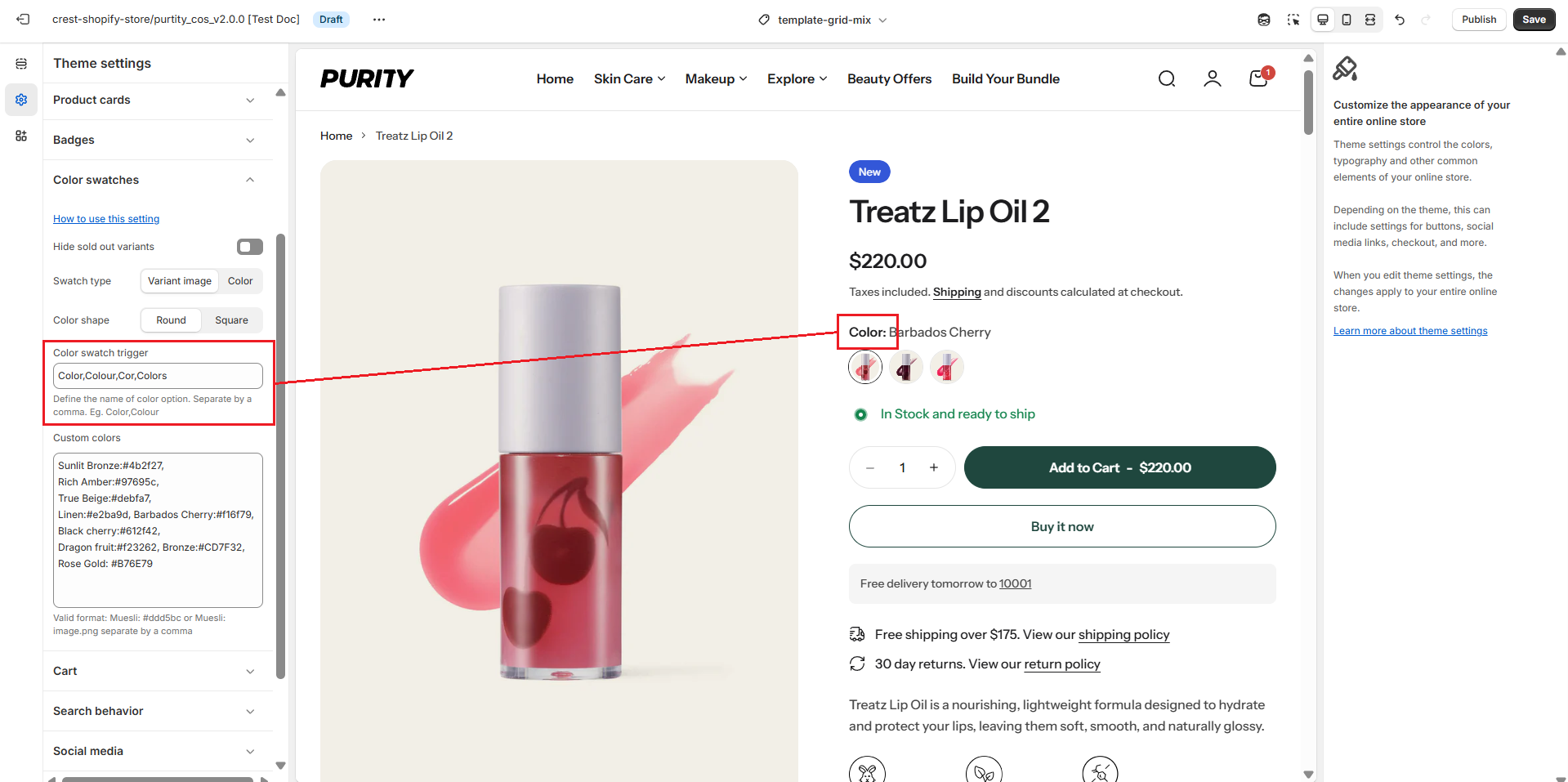
Enter the exact option name(s) for the variant type you want to display as color swatches (e.g., “Color,Colour,Cor").

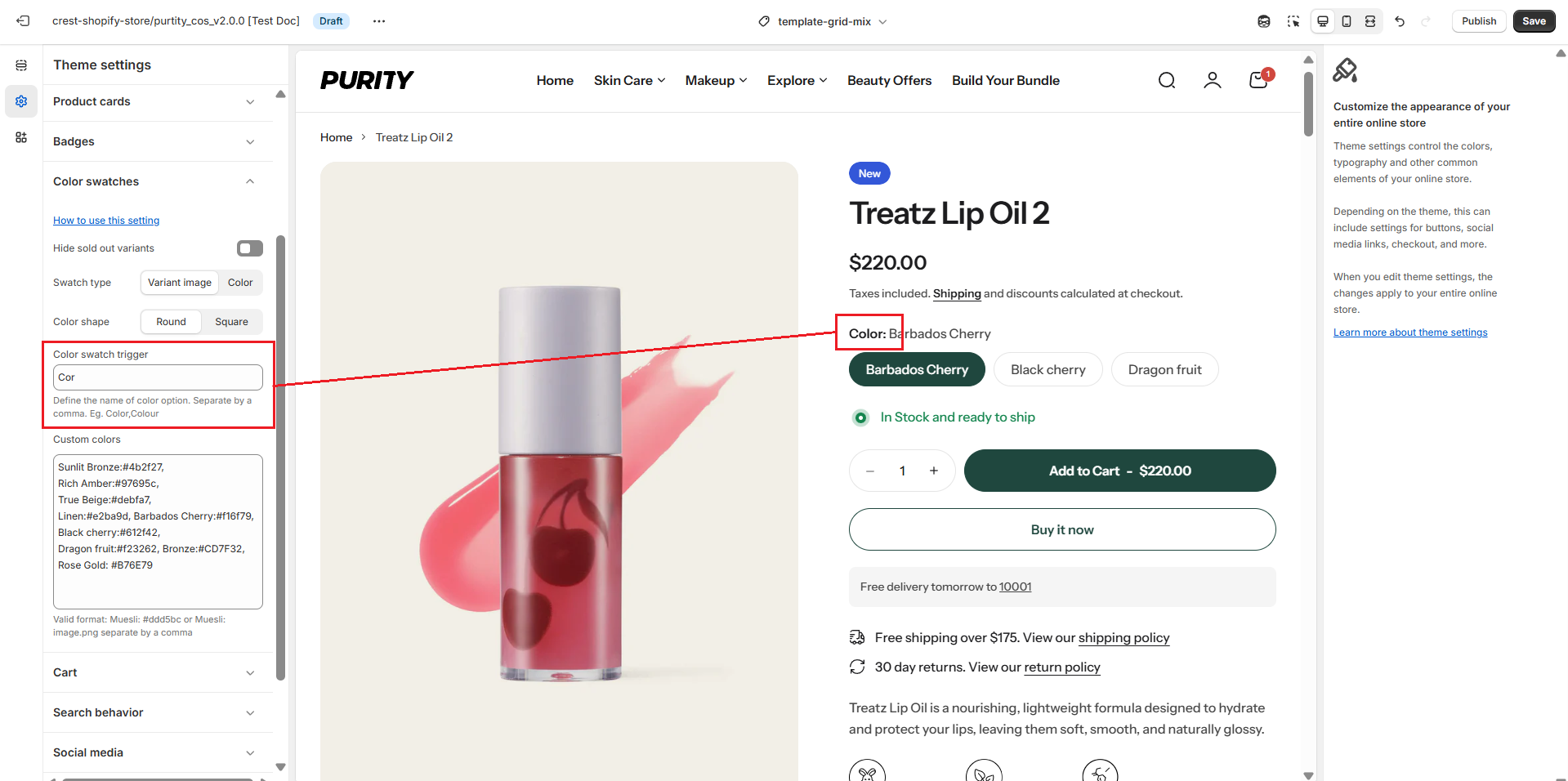
If you have multiple option names, separate each with a comma. The names must match your product variant option names exactly. If left blank, the default option name “Color” will be used.

**When the color swatch trigger has been set:**

<figure><img src="https://1059363070-files.gitbook.io/~/files/v0/b/gitbook-x-prod.appspot.com/o/spaces%2FRcDJSoM26kdEZlVFekVW%2Fuploads%2FgJTH0LDuUioLcJLM4cqj%2FScreenshot%202025-08-09%20004223.png?alt=media&#x26;token=14ac111a-7bb9-4366-acbb-8191210a2ec6" alt=""><figcaption></figcaption></figure>

**When no color swatch trigger is defined, or the defined trigger does not match any of your variant options:**

<figure><img src="https://1059363070-files.gitbook.io/~/files/v0/b/gitbook-x-prod.appspot.com/o/spaces%2FRcDJSoM26kdEZlVFekVW%2Fuploads%2F5WzbAKWVetbqWbaZIyzj%2FScreenshot%202025-08-09%20004245.png?alt=media&#x26;token=6ced4b17-e5db-43cd-8cb3-579fa8ad4f9a" alt=""><figcaption></figcaption></figure>

### **Custom colors**

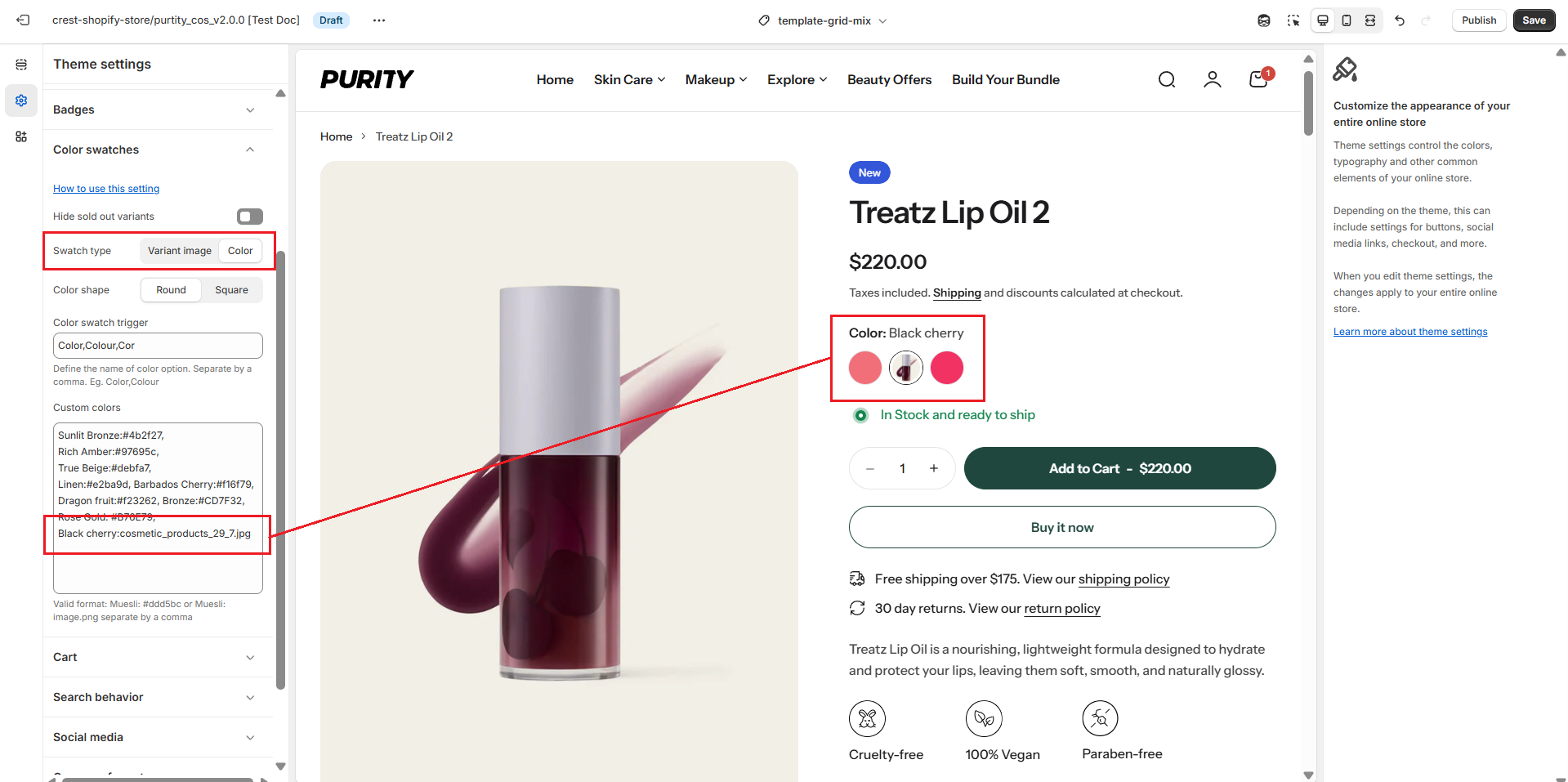
Define a custom value for your color variants by listing them with either a hex color code or an image name. Use the format:

* Hex color code → `Sunlit Bronze:#4b2f27`
* Image name → `Sunlit Bronze:sunlit-bronze.png`

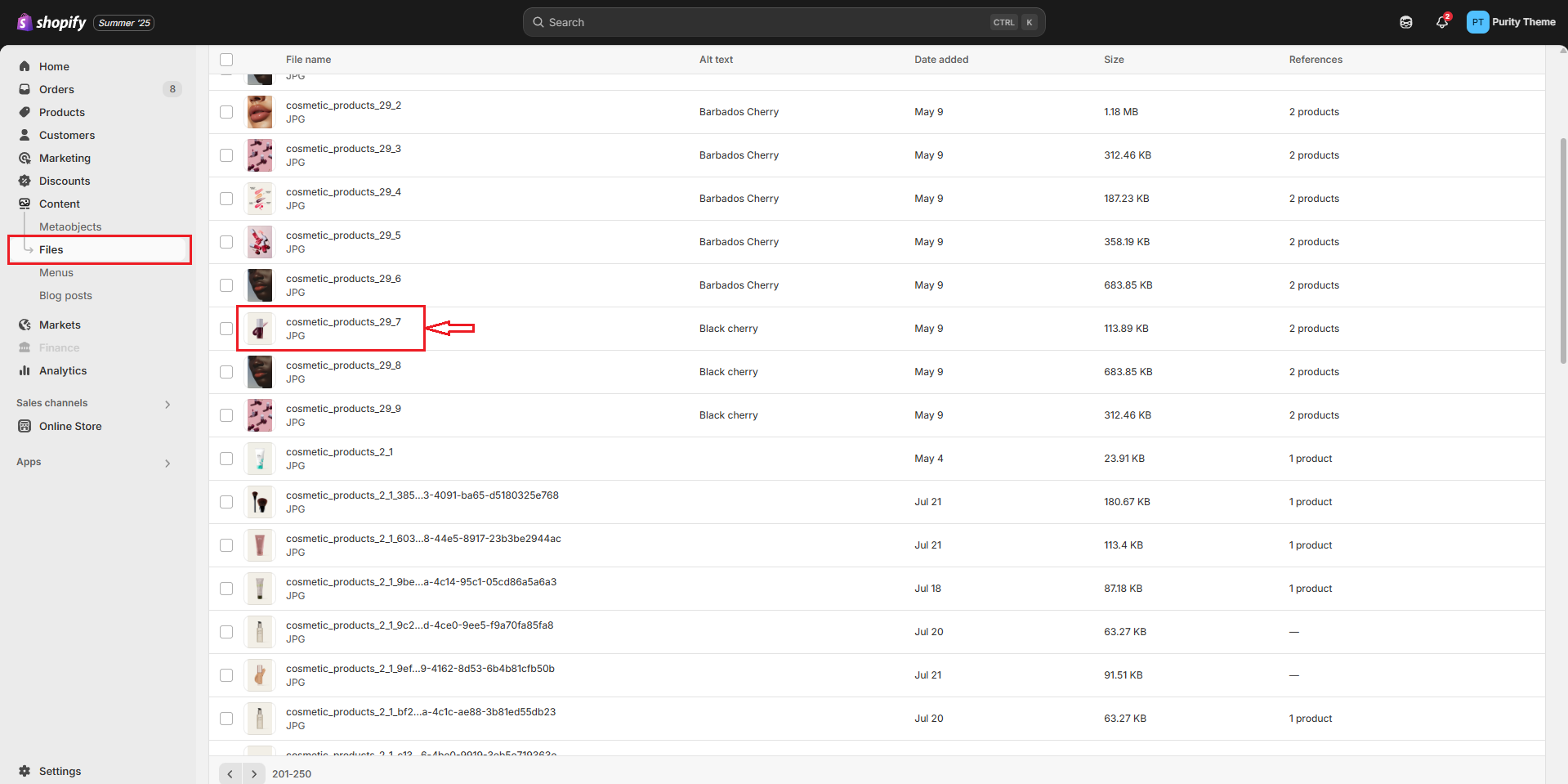
Separate multiple entries with commas, and make sure each color name matches your product variant name exactly. Ensure any referenced images are uploaded to your store’s files beforehand.

{% hint style="info" %}
**For example:** You upload an image named `cosmetic_products_29_7.jpg` and assign it to the **Black Cherry** color. After this, even if the swatch type is set to **Color**, the **Black Cherry** option will still display using the `cosmetic_products_29_7.jpg` image.
{% endhint %}

<figure><img src="https://1059363070-files.gitbook.io/~/files/v0/b/gitbook-x-prod.appspot.com/o/spaces%2FRcDJSoM26kdEZlVFekVW%2Fuploads%2F78097KG6cdlzH65aFtjp%2FScreenshot%202025-08-09%20004908.png?alt=media&#x26;token=381c8744-eddf-42db-a6b7-419185ab4e0d" alt=""><figcaption></figcaption></figure>

<figure><img src="https://1059363070-files.gitbook.io/~/files/v0/b/gitbook-x-prod.appspot.com/o/spaces%2FRcDJSoM26kdEZlVFekVW%2Fuploads%2F5lYvFYjQNI0Vuvs9Zwu7%2FScreenshot%202025-08-09%20005036.png?alt=media&#x26;token=05edccb9-850f-432b-93c2-ea7eff55e1db" alt=""><figcaption></figcaption></figure>