Banner products carousel

Steps
In the theme editor (Customize), click Add section
Locate Products carousel
Save
Section settings
Section header and general:
Section width: You can choose among Fluid container, Full width, Stretch width for the banner layout.
Color scheme: Set text color and background color with preset scheme
Content Width: Choose whether the content inside the header is full width or stretched.
Header Block Text Width: Adjust the width (percentage) of the text content area within the header block.
Position: Choose the alignment of the header content within the section. Options:
LeftRight

Use the provided text fields to add a suitable heading/description and button. Leave any of them blank if you do not want to display them.
Adjust the text alignment (left/center/right) along with the font size.
Content Alignment Vertical: Align the content vertically within its container.

Products settings
Specify the quantity of products to display, the number of products per row, and the gap between two adjacent products.

Banner settings
Image: Upload or select an image to display as the background for the banner.
Image Overlay Opacity: Adjust the transparency level of the overlay applied on the banner image.
Top: Set the spacing (in pixels) above the banner content to control vertical padding.
Bottom: Set the spacing (in pixels) below the banner content to control vertical padding.

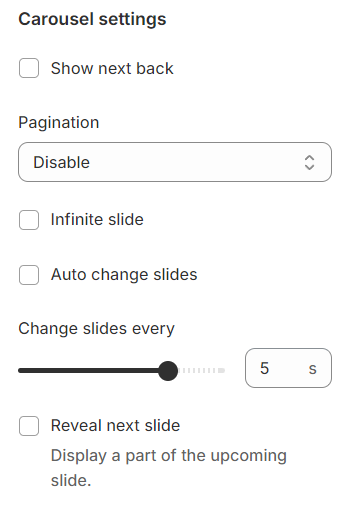
Carousel settings
Show Next/Back: Display arrows to navigate to the next or previous item.
Pagination: Choose from different types of pagination options.
Setup period time: Configure the time interval for changing slides.
Reveal next slide: Allow a part of the next slide to be visible while the previous one is still displayed.
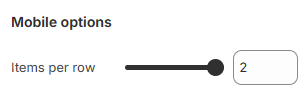
Mobile options
Specify the number of items displayed per row on mobile devices for an optimal viewing experience.
Section padding
Section padding allows you to specify the space between this section and the preceding or following sections, or both.

Last updated