Image with text overlay

The image with text section provides an appealing and dynamic approach mixing media, message, and a call-to-action button. This is a great way to promote a product/collection or any exciting feature on your online store.
Steps
In the theme editor (Customize), click Add section
Locate Banner with text
Save
Section settings
General
Section width: Can choose among Default, Fluid Container, Stretch width, Full width for the section layout..
Color scheme: You are allowed to change text color, background color, etc. with preset color.

Image
Image/Mobile image: Select or upload an image for the banner on both desktop and mobile views.
Overlay opacity: Adjust the opacity level of the image overlay.
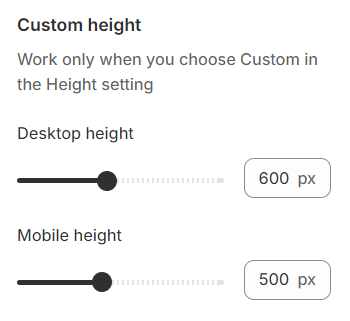
Height: Choose a height style for the image.

Custom height: Helps determine image height
Content settings
Content alignment: Options to align text left, center, or right are available.
Layout content: Vertically and horizontally align the content for optimal positioning.
Content position: Options are available to align content as desired.
Content width: Define the width of the content box for a tailored fit.
Max width: Adjust the max width of the content.
Content padding: Configure the padding for the content box.

Content box
When turned on, you can set the background color and adjust the opacity for the background color of the content.

Mobile options and Section padding
Content Placement: Choose to display content below the image or maintain the same layout as on desktop.
Content alignment: Set the alignment for content on mobile devices.
Section padding: allows you to specify the space between this section and the preceding or following sections, or both.

Block settings
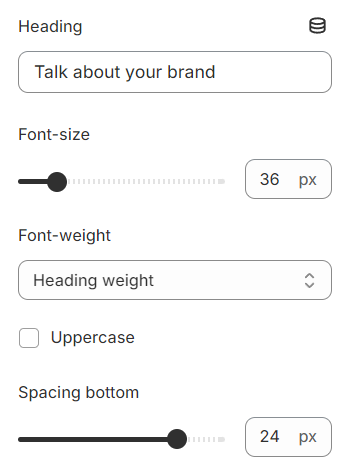
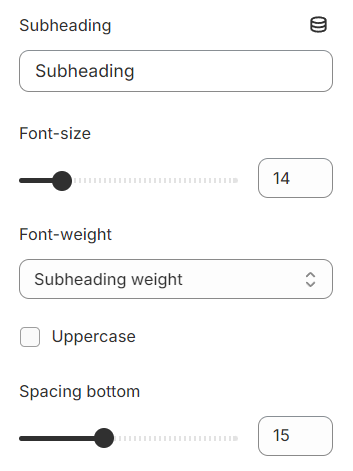
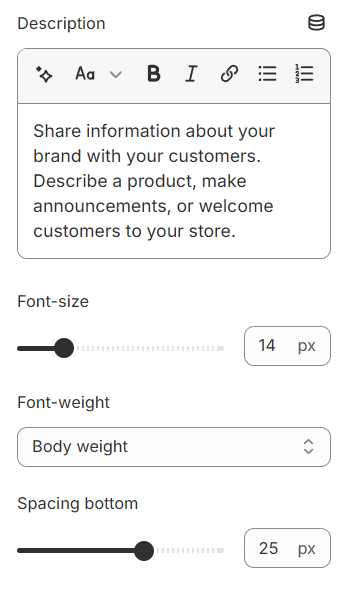
Each block includes settings for content such as font size, font weight, text transformation, and spacing.
Heading
Subheading
Description
Timer

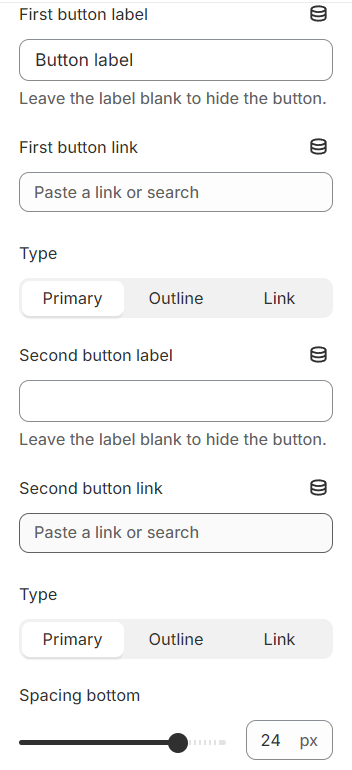
Button
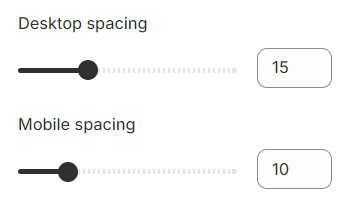
Spacing
Section padding allows you to specify the space between this section and the preceding or following sections, or both.
Last updated